How to Verify Emails in Pipedrive
Pipedrive keeps an email address on every Person record, but it never confirms that the address still reaches a real mailbox. Leads from web forms, contacts entered by reps, and People imported from older tools sit in your pipeline looking ready to email until a campaign reveals how many bounce. This guide shows you how to export a Pipedrive People list to CSV, verify it with VeriMails, and re-import a clean list so your outreach stays deliverable.
TLDR
- Use the People list view, apply a filter, and choose the columns you want before exporting.
- Include Email and the Pipedrive System ID so the verified file can update existing People without duplicates.
- Pipedrive imports XLS, XLSX, and CSV files, but the verification workflow is easiest with a CSV.
- Keep invalid rows out of sales campaigns and import a verified date or status for operational tracking.
People Export Setup
Pipedrive list views are useful because you can filter to the exact contacts you plan to use and choose the fields that will travel through verification.
| Setup choice | What to do in Pipedrive | Operator note |
|---|---|---|
| Export scope | Open Contacts > People, apply a filter, and export only the records matching the campaign or cleanup job. | List-view exports keep the file focused; full account exports are better reserved for admins doing broader backups. |
| ID column | Use the gear icon to add the Pipedrive System ID for People before export. | Pipedrive uses this ID to update existing records in bulk without creating duplicates. |
| Required columns | Keep Email, Person name, Organization, Owner, pipeline tags, source, and the ID column. | These fields let sales owners understand why a row was changed after verification. |
| Import file | Use the spreadsheet import flow with the verified CSV and map the ID field during import. | Pipedrive can import CSV, XLS, and XLSX, but keeping the workflow in CSV avoids spreadsheet formatting surprises. |
| Audit trail | Add a verification status/date column before importing the cleaned results. | Reps can filter by fresh verification instead of relying on a one-off exported file. |
Why Verify Your Pipedrive Contacts
Pipedrive is a sales-focused CRM, and that focus means People records flow in fast from many directions. Web forms, the LeadBooster add-ons, manual entry by reps, and imports from spreadsheets or other CRMs all feed the People list. None of those sources confirm the email is deliverable, so over time a Pipedrive account fills with a mix of solid contacts and quietly dead addresses.
Pipedrive does not check whether a Person's email works
The email field on a Person record holds whatever was entered. It might be a typo from a manual entry, an abandoned mailbox from an old import, or an address that was never valid. Pipedrive stores it without testing it against the mail server. VeriMails runs that live test, so you can see which People records would bounce before you send a campaign through Pipedrive's email tools or push the list into a sequencing app.
Sales contact data goes stale quickly
Sales contacts can sit in Pipedrive for months between first capture and the next campaign. People change roles, companies change domains, and old imports get reused by new reps. A Person added through a trade show or web form can look complete while the mailbox is no longer reachable. Verifying an export right before outreach reflects the current deliverability of each address.
Bounces hurt the sender reputation behind your pipeline
When you email People records straight from Pipedrive or sync them to a cold outreach tool, every invalid address turns into a bounce. Mailbox providers treat repeated bounces as a sign that a list is not maintained, which can hurt future sends to good contacts as well. Verifying first keeps bad addresses out and protects deliverability for every deal in your pipeline.
Clean People data keeps your pipeline metrics honest
Activity reporting, email open and reply tracking, and pipeline conversion analysis all assume the People you contact are reachable. Dead addresses inflate your contact count, distort engagement metrics, and trigger follow-up activities against people who never received the first message. Verifying the list keeps Pipedrive reporting grounded in contacts who genuinely exist.
What VeriMails Checks
VeriMails runs every address from your Pipedrive export through a layered set of checks. Each layer catches a different type of bad email, and every Person comes back with a definite status rather than a vague score.
It starts with syntax validation to catch malformed addresses, including the typos that slip in through manual entry on a Person record. MX and DNS checks then confirm the domain exists and is configured to receive mail. The live SMTP handshake is the step that matters most: VeriMails opens a real connection to the receiving mail server and confirms the specific mailbox will accept a message, without ever sending one. This is what catches the abandoned mailboxes and departed contacts that Pipedrive still lists as active People.
VeriMails also runs catch-all detection to flag domains that accept every address whether or not a real mailbox exists, disposable detection for temporary throwaway inboxes, and role-based detection for generic addresses such as info@ or sales@. Catch-all status is reported as a clear detection result, never a probability score. Across all of these checks VeriMails returns clear verification results that work well in live workflows.
Pricing for Pipedrive Users
Verification is priced so that cleaning a Pipedrive People list before outreach costs very little against the value of protected deliverability. VeriMails credits start at $0.0019 per email, which is $19 for a 10,000-credit pack. Credit packs scale up to 5 million verifications for $1,499, and credits never expire, so a balance bought for one campaign carries forward to the next.
If you export and clean Pipedrive data on a regular cadence, annual plans start at $12.50/month when billed yearly. Every new VeriMails account also includes 100 free credits with no credit card required, which is enough to verify a sample of your Pipedrive People and see how many records hold invalid or catch-all addresses before you commit to a plan.
Workflow Visual
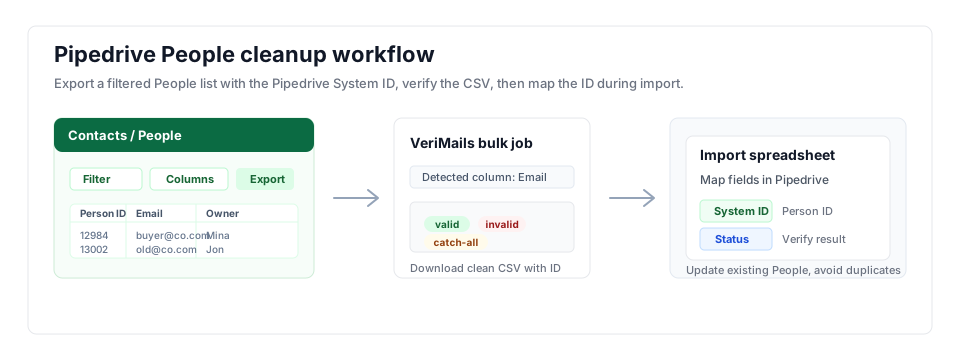
The cleanest Pipedrive workflow starts with a filtered People view, keeps the Pipedrive ID in the file, and uses VeriMails results to decide which records can safely move into outreach.
- Pipeline data quality: Tie this cleanup into the broader CRM hygiene workflow before campaign launches.
- Sales outreach: If Pipedrive feeds cold sequences, review the sales team email verification use case as well.
- Adjacent CRM guides: Compare this flow with Salesforce and Close exports when migrating lists.
Step-by-Step
Open the People list in Pipedrive
In Pipedrive, go to Contacts and select People. Use the Filters menu to build or apply a filter so the list view shows only the records you want to verify. Click the gear icon above the list to choose which columns are visible, and make sure the email field and the Pipedrive ID column are included.
Export the People list to CSV
With the filter applied, select the records and use the export option, then choose CSV as the file format and download. For a complete export of every Person, a global admin can use the More menu and Export data instead, which also offers CSV. The list-view export keeps your file focused on the segment you want to clean.
Upload the Pipedrive CSV to VeriMails
Sign in to VeriMails, open bulk verification, and upload the CSV from Pipedrive. VeriMails automatically detects the email column, so there is no manual mapping. The job runs as a queued bulk verification while the syntax, MX, DNS, SMTP, catch-all, disposable, and role-based checks all run.
Review valid, invalid, catch-all, and risky results
VeriMails sorts every address by status. Valid addresses are safe to email. Invalid addresses would hard bounce and should be removed before any send. Catch-all results are flagged so you can decide how to treat them. Disposable and role-based addresses appear separately. Download the filtered valid results as a clean CSV.
Re-import the cleaned list into Pipedrive
Use Pipedrive's spreadsheet import to bring the verified file back in. Keep the Pipedrive ID column so Pipedrive matches each row to the existing Person and updates it instead of creating a duplicate. The import summary shows how many records were added, updated, merged, or skipped, so you can confirm the cleanup landed.
What to Do With Each Result
Use the verification status as an operating field in Pipedrive, not just a one-time spreadsheet note. The status should decide which People can enter campaigns, which need owner review, and which should be suppressed.
- Valid Update the Person record, add a verified date, and keep the contact eligible for campaigns or sales follow-up.
- Invalid Remove from campaign filters and flag for owner cleanup before any new email activity is scheduled.
- Catch-all Keep in a review view. Send only when the deal value justifies a cautious, low-volume attempt.
- Disposable Exclude from pipeline nurturing and ask the owner to confirm a durable work address.
- Role-based Keep for company-level operations where useful, but exclude from personalized rep sequences by default.
Frequently Asked Questions
Related Guides
Try VeriMails Free
100 free credits on signup. No credit card required. Put this guide into practice today.
Start Free