How to Verify Emails in Close
Close is built for high-volume outbound, which means the email addresses on your Leads and Contacts get used hard and often. But Close never checks whether those addresses still reach a real mailbox, so imported lists, prospecting tool data, and contacts who have changed jobs quietly drag down your sequences. This guide shows you how to export a Close Leads view to CSV, verify it with VeriMails, and re-import a clean list so your outbound stays deliverable.
TLDR
- Start from a Leads Smart View because Close contact exports are initiated from the Leads list.
- Set the export Type to Contacts and keep Lead ID, Contact ID, email, owner, status, and sequence fields.
- Verify the exported CSV in VeriMails before the Smart View feeds sequences or rep outreach.
- Use the Lead Importer with a stable comparison field so the cleaned file updates existing Close records.
- Let valid contacts into sequences and hold invalid, disposable, role-based, and catch-all rows for review.
Close Export Setup
Close exports contacts through a Leads view, so operators need to decide the Smart View, exported fields, and comparison field before verification starts.
| Setup choice | What to do in Close | Operator note |
|---|---|---|
| Export source | Open Leads, build a Smart View for the exact accounts or contacts you plan to work, then export from that view. | This keeps verification tied to a real outbound motion rather than a broad CRM dump. |
| Export type | Choose Contacts as the export type, even though the action starts from the Leads tab. | The result is a contact-level CSV with the email addresses that need verification. |
| Required fields | Keep email, Lead ID, Contact ID, name, company, owner, lead status, source, and sequence membership where available. | These fields make it clear which records should be updated, suppressed, or reviewed after verification. |
| Comparison field | Use Lead ID, Contact ID, or a custom external ID as the comparison field in the Lead Importer. | Matching on an identifier prevents the return file from creating duplicate Leads. |
| Sequence gate | Import verification status before enrolling contacts in high-volume sequences. | Close sends through your connected mailbox, so bad addresses affect the same domain your reps use daily. |
Why Verify Your Close Contacts
Close is a sales CRM designed around calling and emailing at scale, with built-in sequences and email sending. That design puts contact data quality at the heart of deliverability: the addresses you store are the addresses your sequences fire at, often in large batches. Contacts arrive in Close through imports, prospecting tools, manual entry, and connected lead sources, and none of those routes confirm an email is deliverable.
Close does not validate the address on a Contact
Whatever email is added to a Contact in Close is stored as is. It might be a typo from a quick manual entry, an abandoned mailbox from a bulk import, or an address that was never valid. Close does not open a connection to the mail server to check. VeriMails runs that live check, so you can see which addresses would bounce before you send a Close email or launch a sequence against a Smart View.
Outbound contact data goes stale quickly
B2B contact data decays at around 2.1 percent a month, roughly 22.5 percent a year, and close to 30 percent of B2B records go stale within twelve months as people change roles and companies restructure. A list imported into Close a few months ago has likely lost a meaningful share of its deliverable addresses already. Verifying an export right before a sequence reflects the current deliverability of each address rather than its state at import.
Bounces from Close sequences damage your sender reputation
Close sends sequence email directly, so every invalid Contact turns into a bounce on the domain you send from, and high-volume outbound makes those bounces stack up fast. Mailbox providers read a high bounce rate as a sign of a low-quality or purchased list and respond by routing more of your mail to spam. A bounce rate above 3 percent needs attention, and rates above 5 percent push real damage into your domain reputation. Verifying first keeps bounces low across every sequence.
Clean contacts keep Close sequence metrics honest
Sequence reporting, open and reply tracking, and Smart View counts all assume the contacts being worked are reachable. Invalid addresses inflate your numbers, distort reply rates, and waste sequence steps on people who never received the first email. Verifying the data keeps Close reporting grounded in contacts who genuinely exist, so reps work real prospects.
What VeriMails Checks
VeriMails runs every address from your Close export through a layered set of checks. Each layer catches a different type of bad email, and every Contact comes back with a definite status rather than a vague score.
It starts with syntax validation to catch malformed addresses, including typos that slip in through manual entry. MX and DNS checks then confirm the domain exists and is configured to receive mail. The live SMTP handshake is the step that matters most: VeriMails opens a real connection to the receiving mail server and confirms the specific mailbox will accept a message, without ever sending one. This is what catches the abandoned mailboxes and departed contacts that Close still records as active.
VeriMails also runs catch-all detection to flag domains that accept every address whether or not a real mailbox exists, which is common across B2B domains, plus disposable detection for temporary throwaway inboxes and role-based detection for generic addresses such as info@ or sales@. Catch-all status is reported as a clear detection result, never a probability score. Across all of these checks VeriMails returns clear verification results that work well in live workflows.
Pricing for Close Users
Verification is priced so that cleaning a Close list before a sequence costs very little against the value of protected deliverability. Credit packs start at $0.0019 per email, which is $19 for a 10,000-credit pack. Credit packs scale up to 5 million verifications for $1,499, and credits never expire, so a balance bought for one outbound push carries forward to the next.
If you import and clean Close lists on a regular cadence, annual plans start at $12.50/month when billed yearly. Every new VeriMails account also includes 100 free credits with no credit card required, which is enough to verify a sample of your Close contacts and see how many records hold invalid or catch-all addresses before you commit to a plan.
Workflow Visual
Use this flow to verify Close contacts before a Smart View becomes the source for sequences or rep outreach.
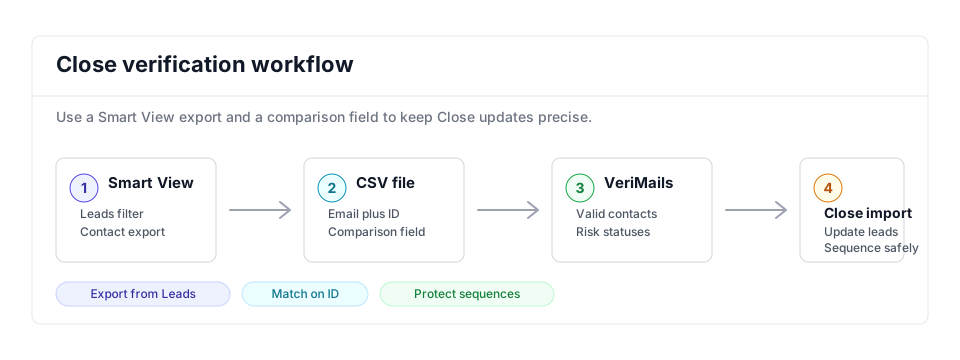
- Sales workflow: Connect this cleanup to the broader sales email verification workflow before new sequences.
- List cleaning: Use bulk verification when a Smart View contains more records than reps can manually review.
- Comparable CRMs: Review Pipedrive and Freshsales when comparing sales CRM cleanup steps.
Step-by-Step
Open a Leads Smart View in Close
In Close, go to the Leads tab and open or build a Smart View, since exports run from the Leads tab rather than from a Contacts Smart View. Apply a search query so the view shows only the records you want to verify. Keeping the view focused makes the verification efficient and keeps your credit use tidy.
Export the view as a CSV of Contacts
Open the more menu in the top right of the Leads list and choose Export. Set the Type to Contacts so you get a contact-level file, choose CSV as the format, and pick Common fields or All fields. Start the export. Close emails you a download link, and the link stays valid for seven days.
Upload the Close CSV to VeriMails
Sign in to VeriMails, open bulk verification, and upload the CSV from Close. VeriMails automatically detects the email column, so there is no manual mapping. The job runs as a queued bulk verification while the syntax, MX, DNS, SMTP, catch-all, disposable, and role-based checks all run.
Review valid, invalid, catch-all, and risky results
VeriMails sorts every address by status. Valid addresses are safe to email. Invalid addresses would hard bounce and should be removed before any sequence. Catch-all results are flagged so you can decide how to treat them. Disposable and role-based addresses appear separately. Download the filtered valid results as a clean CSV.
Re-import the cleaned list into Close
Use the Close Lead Importer with the verified file and pick a comparison field such as Lead ID or a custom field holding your record identifier. Close uses the comparison field to match each row to an existing Lead, then you choose to only add missing information, replace existing data, or skip. Matching on a stable identifier keeps the update clean and duplicate-free.
What to Do With Each Result
Treat the verification status as a send gate inside Close, especially when a Smart View feeds sequences or coordinated rep activity.
- Valid Keep eligible for sequences, update the verification date, and let reps continue normal outreach.
- Invalid Exclude from sequences and add a cleanup task for the owner before any future email step.
- Catch-all Move to a low-volume review view and send only when the account is worth the extra risk.
- Disposable Suppress from outbound workflows and ask the owner to confirm a durable business address.
- Role-based Keep for account routing or support-style contact, but exclude from personalized rep sequences.
Frequently Asked Questions
Related Guides
Try VeriMails Free
100 free credits on signup. No credit card required. Put this guide into practice today.
Start Free