How to Verify Emails in Salesforce
Salesforce holds the email address on every Contact and Lead, but it never checks whether those addresses still reach a live mailbox. Records captured years ago, leads from web forms, and contacts who have since changed companies can sit in the database looking valid until a campaign reveals bounce and review issues. This guide shows you how to export a Salesforce contacts report to CSV, verify it with VeriMails, and re-import status results so campaign operators can filter before sending.
TLDR
- Export a Salesforce report as Details Only CSV so you get row-level contact or lead data instead of a formatted spreadsheet.
- Keep Contact ID or Lead ID beside Email, First Name, Last Name, Account, Owner, and campaign fields before verification.
- Verify the CSV in VeriMails, then split the results by valid, invalid, catch-all, disposable, and role-based status.
- Use Data Import Wizard or Data Loader to update existing records by Salesforce ID rather than matching on email alone.
Report Export Setup
The cleanest Salesforce workflow is report-driven. Build a report that mirrors the audience you are about to send to, export row-level details, then use the Salesforce ID as the return path for updates.
| Setup choice | What to do in Salesforce | Operator note |
|---|---|---|
| Report type | Use a Contacts, Leads, or Contacts & Accounts report depending on the audience. | Do not mix unrelated objects unless the import path is clear for every row. |
| Export view | Choose Details Only, then select CSV when exporting. | Formatted Report is built for presentation; Details Only is the export you can clean and re-import. |
| Columns | Include Email, Contact ID or Lead ID, name fields, Account, Owner, and campaign or segment fields. | The ID column is what lets the cleaned file update the exact record later. |
| Large files | Use Data Loader when the verified file is too large or too operationally sensitive for a manual wizard import. | Keep a copy of the original report export so the import can be rolled back or audited. |
| Post-import marker | Add a verified date/status field or campaign membership flag during import. | Future campaigns can filter on fresh verification instead of guessing which list was cleaned. |
Why Verify Your Salesforce Contacts
Salesforce is the system of record for revenue teams, which means almost everything downstream depends on the data inside it. Marketing Cloud, Account Engagement, sales sequences, and any connected sending tool all draw their recipient lists from Salesforce Contact and Lead records. If those records hold dead addresses, the problem follows the data into every channel that uses it.
Salesforce never validates the address in the Email field
Whatever lands in the Email field on a Contact or Lead is stored as is. It might come from a web-to-lead form, a rep entering a business card, a bulk import from an old list, or an integration syncing from another system. Salesforce does not open a connection to the mail server to check the mailbox. VeriMails adds that verification step, so you learn which records are stronger send candidates and which ones need review before a campaign.
Lead and contact data decays continuously
Work email changes whenever people move roles, companies rename domains, or old leads age out of active buying cycles. A Salesforce Lead created long before the next campaign can still look complete while the mailbox has already disappeared. Verifying an export right before a campaign reflects the current state of each address.
Bounces from Salesforce data can affect sender reputation
When you push a Salesforce segment into Marketing Cloud, Account Engagement, or a sales engagement tool, invalid addresses can become hard bounces. Mailbox providers treat repeated bounces as evidence that the list is not being maintained and may filter more mail away from the inbox. Verifying first helps keep likely bad rows out of the send and reduces avoidable bounce risk for campaigns built from Salesforce data.
Clean records make Salesforce reporting and forecasting reliable
Campaign reports, engagement scoring, and pipeline analysis all assume the contacts behind them can be reached. Invalid addresses distort open and click rates, trigger automation against unreachable records, and quietly erode trust in the dashboards leadership relies on. Verifying the data helps anchor Salesforce reporting to records with clearer reachability status.
What VeriMails Checks
VeriMails runs every address from your Salesforce export through a layered set of checks. Each layer targets a different kind of bad email, and every record comes back with a clear status rather than a vague score.
It begins with syntax validation to catch malformed addresses, including the typos that creep in through manual data entry. MX and DNS checks then confirm the domain exists and is set up to receive mail. The live SMTP handshake opens a real connection to the receiving mail server and checks whether the specific mailbox appears able to accept a message, without ever sending one. This helps identify abandoned mailboxes and departed contacts that Salesforce may still record as active.
VeriMails also performs catch-all detection to flag domains that accept every address regardless of whether a real mailbox exists, disposable detection for temporary throwaway inboxes, and role-based detection for generic addresses such as info@ or sales@. Catch-all status is returned as a clear detection result, never a probability score. Across all of these checks VeriMails returns clear verification results that work well in live workflows.
Pricing for Salesforce Users
Verification is priced so that cleaning a Salesforce contact list before a send has a predictable cost against the value of reducing avoidable bounce risk. VeriMails credits start at $0.0019 per email, which is $19 for a 10,000-credit pack. Credit packs scale up to 5 million verifications for $1,499, and credits never expire, so a balance bought for one project carries over to the next.
If you export and clean Salesforce data on a regular schedule, annual plans start at $12.50/month when billed yearly. Every new VeriMails account also includes 100 free credits with no credit card required, which is enough to verify a sample report from Salesforce and measure how many Contact and Lead records hold invalid or catch-all addresses before you commit to a plan.
Workflow Visual
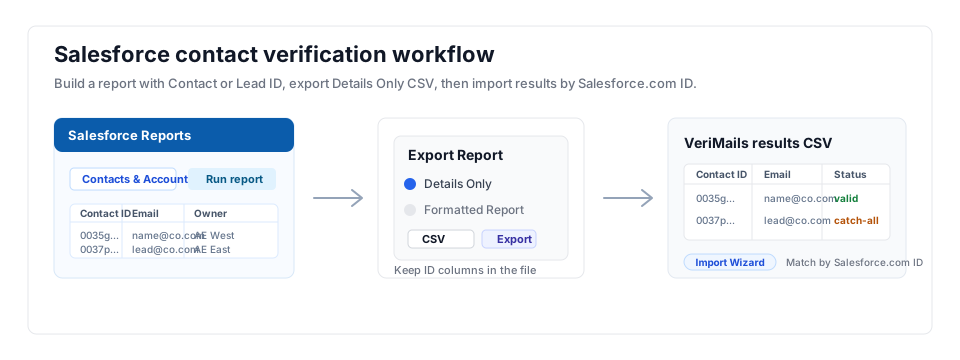
Use this flow when Salesforce is the system of record: export the report, verify the file outside Salesforce, then update Contacts or Leads by ID so downstream sending tools inherit the cleaned data.
- CRM hygiene: For broader cleanup programs, pair this flow with the CRM hygiene guide.
- Large exports: Use bulk email verification when Salesforce reports feed campaigns, cadences, or enrichment workflows.
- Risk handling: Use catch-all detection to separate ambiguous B2B domains before re-importing.
Step-by-Step
Build a contacts report in Salesforce
Open the Reports tab and click New Report. Choose the Contacts & Accounts report type and click Start Report. Add the Email field plus First Name, Last Name, and Contact ID as columns. Apply filters to narrow the report to the segment you want to verify, then run the report.
Export the report as a CSV
With the report open, click the Export button. Choose Details Only rather than Formatted Report, since Details Only is what makes CSV available, then select CSV as the format and export. For very large databases, the Setup area also offers a Data Export service that delivers Contacts as a zipped CSV.
Upload the Salesforce CSV to VeriMails
Sign in to VeriMails, open bulk verification, and upload the exported CSV. VeriMails automatically detects the email column, so there is no manual mapping. The job runs as a queued bulk verification while the syntax, MX, DNS, SMTP, catch-all, disposable, and role-based checks all run.
Review valid, invalid, catch-all, and risky results
VeriMails sorts every address by status. Valid results are the best candidates to keep eligible when consent and policy checks also pass. Invalid results are likely to hard bounce and should be removed or marked before any send. Catch-all results are flagged so you can decide how to treat them. Disposable and role-based addresses appear separately. Download the filtered valid results as a clean CSV.
Re-import the cleaned list into Salesforce
Use the Data Import Wizard or Data Loader to update your Contact or Lead records from the verified file. Match each row on the Salesforce Record ID you exported earlier so the correct existing record is updated and no duplicates are created. You can flag invalid addresses with a field value or remove them from active marketing segments.
What to Do With Each Result
Keep the VeriMails status in the file you import back to Salesforce. That gives sales, marketing, and operations the same record-level answer instead of leaving the cleanup in a disconnected spreadsheet.
- Valid Update the record, add a verified date, and keep it eligible for the next campaign or sequence.
- Invalid Remove from active sends, flag the record for owner review, or clear campaign membership until a new address is confirmed.
- Catch-all Keep out of bulk sends by default. Route to owner review or a smaller, high-value outreach segment.
- Disposable Exclude from nurture and lifecycle campaigns because the mailbox is not durable enough for CRM ownership.
- Role-based Keep for operational accounts where appropriate, but separate from personalized sales sequences.
Frequently Asked Questions
Related Guides
Try VeriMails Free
100 free credits on signup. No credit card required. Put this guide into practice today.
Start Free