How to Verify Emails in Excel
Excel is where many teams keep their email lists, from sales prospects to event signups to imported contact exports. A column built up this way can carry typos and dead inboxes. Verifying that column with VeriMails shows which addresses are valid, invalid, catch-all, disposable, or role-based before you send to any of them.
TLDR
- Save the active Excel worksheet as CSV UTF-8, keeping Email plus row ID, name, company, source, and owner fields for clean matching.
- Upload the CSV to bulk verification to get valid, invalid, catch-all, disposable, and role-based statuses without changing the workbook.
- Bring status columns back into Excel, filter out risky rows before any send, and use pricing to size larger workbook cleanups.
Excel Export Setup Checklist
Before saving a CSV, prepare the workbook so the verification results can return without losing row context. The CSV is a working file; the original workbook should remain unchanged.
| Decision | Excel setup | Operator note |
|---|---|---|
| Worksheet scope | Open the worksheet that holds the email column and save that active sheet as CSV UTF-8. | Excel saves one active worksheet to CSV, so repeat the export if the workbook has multiple contact tabs. |
| Encoding | Use CSV UTF-8 (Comma delimited) when available. | UTF-8 protects names, companies, and notes that contain non-English characters. |
| Merge fields | Keep Email plus name, company, source, owner, and a stable row ID or customer ID. | These fields help you match VeriMails results back to the right row instead of relying only on the email value. |
| Formula handling | Keep the original workbook intact and treat the exported CSV as a values-only working copy. | CSV does not preserve formulas, formatting, workbook tabs, or Excel-only metadata. |
| Result columns | Bring back verification status, reason, suggested action, and verified date. | These columns make the workbook filterable for send-ready, suppression, and review segments. |
Why Verify Your Excel Contacts
An Excel workbook is one of the most common places an email list lives before it goes to work. Lists get assembled from event sign-up sheets, pasted in from other tools, bought or compiled, and edited by hand over months. Excel will happily store any string in a cell, but it has no way to tell you whether an address can actually receive mail.
Manual editing introduces silent errors
Every time someone types or pastes an address into a cell, there is a chance of a typo, a trailing space, or a copy that grabbed half a value. None of these are visible at a glance, and Excel will not warn you. Verification catches them before they cost you a send.
Imported and aged lists are the worst offenders
Excel often holds contact data that was exported from another system months or years ago. Email addresses decay every year as people change jobs and abandon inboxes, so an old workbook can include addresses that no longer work. A verification pass gives each row a current status instead of relying on the date the workbook was created.
Bounces from an Excel list hurt your reputation
The moment you upload an Excel column into an email tool and send, invalid addresses can turn into hard bounces. Mailbox providers can throttle senders whose bounce rate climbs out of the healthy range and make filtering more likely; the bounce rate benchmarks show why operators treat list hygiene as a pre-send gate. Verifying the column first reduces avoidable bounce risk.
A verified workbook is a workbook you can act on
An Excel file shared across a team is far more useful when its email column is verified. With each address marked valid, invalid, catch-all, or risky, the workbook becomes a dependable basis for outreach, reporting, or import, rather than a list everyone hesitates to trust.
What VeriMails Checks
VeriMails runs a layered set of checks on every address in your exported Excel column and returns a clear result. The email verification guide explains how those deliverability checks confirm syntax, domain readiness, and mailbox acceptance.
It starts with syntax validation, which catches malformed addresses from manual entry and bad pastes. It then runs MX and DNS checks to confirm the email domain exists and is configured to receive mail. The decisive test is a live SMTP handshake, where VeriMails connects to the receiving mail server and confirms whether that exact mailbox accepts mail, without sending anything.
Three more checks classify the difficult cases. Catch-all detection identifies domains configured to accept mail for any address, so you know when an individual mailbox cannot be confirmed. This is detection of how the domain is set up, not a quality score. Disposable detection flags temporary inbox providers, often present in lists compiled from signups. Role-based detection spots shared addresses such as info@ or sales@ that are usually not the right target for outreach or marketing.
Pricing for Excel Users
You can start at no cost. Every new VeriMails account includes 100 free verification credits, with no credit card required, and those credits never expire. For a short list in an Excel workbook, that free balance may cover the entire job, and the pricing page helps size larger workbook cleanups.
For larger lists, credit packs start at 10,000 credits for $19, which is $0.0019 per email, and scale up to 5 million credits for $1,499. Because credits never expire, you can buy a pack and verify each workbook as you build it, with no pressure to use a balance by a deadline. Teams that verify Excel lists on a regular cadence can choose a monthly subscription instead, with annual plans from $12.50/month when billed yearly. One credit covers one verified address, so cleaning an Excel column has a clear, predictable cost.
Workflow Visual
Use this flow when a spreadsheet column needs to become a verified list without losing row context.
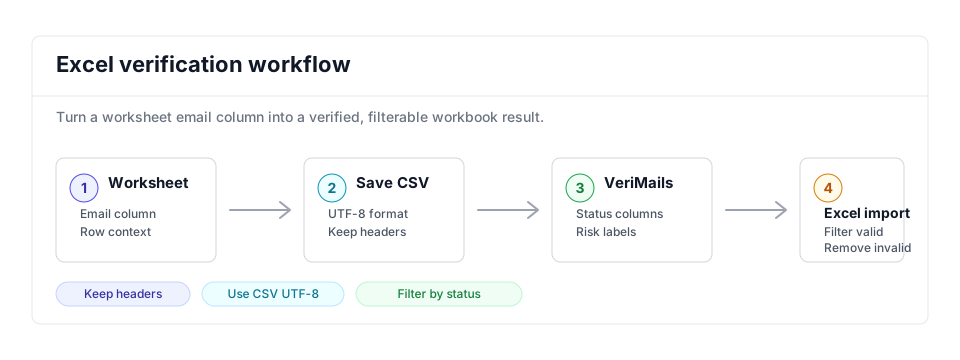
- Export scope: Use the worksheet and columns you actually need; teams working in shared sheets can use the Google Sheets guide for a similar flow.
- Matching field: Keep name, company, row ID, or another stable column beside Email so bulk verification results can be matched back.
- Result action: Import VeriMails status and suggested action columns, then filter out invalid and risky rows before any send or email marketing import. Use catch-all detection guidance when those rows matter to the campaign.
Step-by-Step
Save your workbook as a CSV
Open the worksheet that holds your email column. Go to File, then Save As, and choose CSV UTF-8 (Comma delimited) from the file type list. The UTF-8 option keeps accented characters intact. Excel saves only the active worksheet, so save each sheet separately if your emails are spread across several. Keep your original workbook untouched, then reopen the CSV and check row count, headers, blank email cells, and duplicate email rows before uploading.
Create a free VeriMails account
Sign up for VeriMails. You get 100 verification credits free with no credit card required, enough to test the process or clean a short list. For larger workbooks, choose a credit pack or monthly plan that covers your row count before you upload.
Upload the CSV to VeriMails
Open the bulk verification workflow and drag in the CSV you saved from Excel. The uploader automatically detects and maps the email column, so the column position and header name do not matter, and other columns are preserved. Confirm the mapped column and keep the exported CSV unchanged until the job finishes, so you can rerun it if a teammate catches a bad filter or missing tab.
Review valid, invalid, catch-all, and risky results
When the job completes, VeriMails sorts every address into clear categories: valid, invalid, catch-all where the server will not confirm the mailbox, and risky addresses such as disposable or role-based. Sort by status, source, and owner before acting. A quick QA pass is to sample five rows from each status and confirm the recommended action fits your campaign rules.
Bring the cleaned list back into Excel
Download the filtered results from VeriMails. Open the file in Excel, or use the Data tab to import it, and bring the status columns into your working workbook with a stable row ID or lookup key instead of copying by eye. Confirm that the valid, suppression, and review tabs add back to the original row count before the file is uploaded to an outreach or marketing tool.
What to Do With Each Result
After VeriMails returns the CSV, split the workbook into operational segments before importing or sending. Do not treat every non-invalid row as campaign-ready.
- Valid: Keep in the send-ready tab and add a verified date so the list can be rechecked later.
- Invalid: Move to a suppression tab and remove from any email platform import.
- Catch-all: Hold in a review tab. The domain accepts mail, but the exact mailbox is not confirmed.
- Disposable: Exclude from sales and marketing outreach because the inbox is usually temporary.
- Role-based: Review manually. Shared inboxes can be useful for operations, but they are usually poor fit for personal outreach.
- Unknown or risky: Keep source and owner columns visible so a teammate can decide whether the business value justifies follow-up.
Frequently Asked Questions
Related Guides
Try VeriMails Free
100 free credits on signup. No credit card required. Put this guide into practice today.
Start Free