How to Verify Emails in Pabbly Connect
Pabbly Connect users build automations that move leads from forms, ad platforms, and webhooks into CRMs and email tools. Adding a verification step inside the workflow stops invalid and risky addresses before they ever reach your database, so every downstream app receives clean data.
TLDR
- Add a VeriMails API verification step in Pabbly Connect before the action that creates a CRM or email-platform contact.
- Route valid leads forward and send invalid, disposable, or catch-all results to a review path instead of polluting downstream lists.
- For imported backlogs, pair the live workflow with bulk verification and use pricing to plan credits.
Pabbly Connect Setup Checklist
Build the workflow as a sequence of capture, verify, route, and write. The API step should run before any action that creates a contact in another system.
| Decision | Pabbly setup | Operator note |
|---|---|---|
| Lead trigger | Confirm the trigger response includes the email field and a source value such as form, campaign, or ad name. | Source context makes it easier to identify forms or partners that send low-quality addresses. |
| API action | Use API by Pabbly to call the VeriMails verification API, set the required method, endpoint, headers, parameters, and mapped email value. | API by Pabbly is the generic module for REST calls when there is no dedicated app action. |
| Routing | Add Filter for a single valid-only path, or Router paths when invalid, disposable, and catch-all outcomes need separate handling. | Keep each branch named by outcome so future operators can audit the workflow quickly. |
| Task planning | Budget one VeriMails credit per email and one external API action in the workflow for the verification call. | Pabbly internal tools such as Filter and Router are not the same operational cost as an external API call. |
| Review log | Send rejected or risky addresses to Google Sheets, a CRM note, or a team notification with status and reason fields. | The log is your rollback and source-quality report. |
Why Verify Your Pabbly Connect Contacts
Pabbly Connect is an automation platform where every workflow starts with a trigger and runs through one or more action steps. A typical workflow captures a new lead, formats the data, and pushes it into a CRM or mailing list. The problem is that the email address arriving at the trigger is only as good as its source. Lead forms collect typos, ad platforms pass fallback values, and webhook payloads carry whatever the sending app supplies. Without a check in the middle, every one of those bad addresses lands in your system.
Verifying inside the workflow solves four concrete problems for Pabbly Connect users.
Your CRM stays clean automatically
When you add a verification action between the trigger and the step that creates a contact, only deliverable addresses get written to the CRM. You never have to run a separate cleanup later, because the bad records never enter. This matters most for high-volume automations where manual review is impossible.
Sender reputation is protected at the source
Mailbox providers can throttle senders whose bounce rate climbs out of the healthy range. If your Pabbly Connect workflow feeds an email tool, every invalid address that slips through becomes a hard bounce on the next campaign. Catching those addresses in the workflow is a live version of email list cleaning: it keeps your bounce rate low and your inbox placement high.
Automations branch on real data
Pabbly Connect supports Filters and Routers that read field values and send records down different paths. Once a verification step adds a status to the record, you can route valid leads to one path and invalid, risky, or disposable leads to another. That turns a blind data pipe into a decision-making workflow.
Downstream spend is easier to control
Many tools that sit at the end of a workflow charge by active contact count, stored records, or email volume. Filtering undeliverable addresses before they reach those tools can reduce sends to stale contacts and may reduce billable contact count only when the downstream platform's billing and import model supports it.
What VeriMails Checks
When your Pabbly Connect workflow sends an address to VeriMails, the VeriMails API runs a full sequence of checks and returns a structured result. Every layer rules out a different class of bad address.
Verification begins with syntax validation, which confirms the address is correctly formed before any network work happens. Next, MX and DNS checks confirm the domain exists and is configured to receive mail at all. The core test is a live SMTP handshake: VeriMails opens a connection to the receiving mail server and asks whether the specific mailbox accepts mail, without ever sending a message.
Three more checks add the nuance that automated pipelines need. Catch-all detection identifies domains configured to accept mail for every possible address, so you know when a server cannot confirm an individual mailbox. This is detection, not a guess at quality, and it lets your workflow treat catch-all results as their own category. Disposable detection flags temporary inbox providers that people use to dodge signup forms. Role-based detection identifies shared addresses such as info@ or sales@ that often should not enter a marketing list. Across all of these checks VeriMails returns clear verification results for workflow routing.
Pricing for Pabbly Connect Users
Every new VeriMails account includes 100 free verification credits, with no credit card required and no expiry on those credits. That free balance is enough to build and test a Pabbly Connect workflow end to end before you commit to anything.
For ongoing automations, credit packs start at 10,000 credits for $19, which works out to $0.0019 per email, and scale up to 5 million credits for $1,499. Credits never expire, which suits automations where lead volume rises and falls month to month. If your workflow runs at a steady pace, annual plans start at $12.50/month when billed yearly. Each verified address consumes one credit whether the call comes from a workflow, a single API request or a bulk CSV job, so a Pabbly Connect automation draws from the same balance as any other VeriMails usage.
Workflow Visual
Use this flow to add VeriMails as a verification action inside a Pabbly Connect workflow.
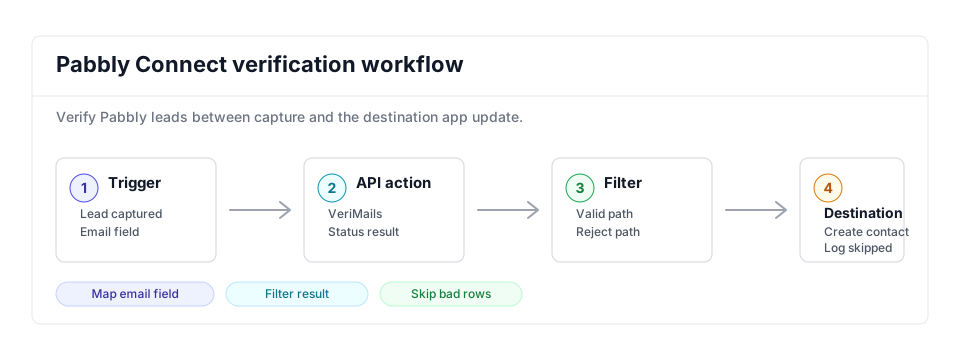
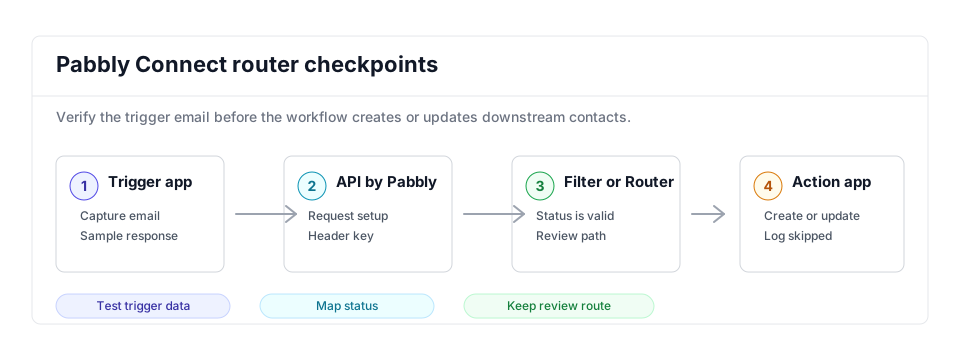
- Trigger scope: Confirm the trigger step exposes the email field before adding the API action.
- API step: Keep the VeriMails key in the API action setup and map the Email Verification API status fields into later steps.
- Result action: Use Filter or Router paths so valid contacts continue while invalid and disposable contacts are logged or skipped.
Step-by-Step
Get your VeriMails API key
Sign up for a free VeriMails account and open the dashboard. Go to the API section and copy your API key. This single key authenticates every verification call your Pabbly Connect workflow makes, so keep it handy for the action step you are about to build.
Open your workflow and find the email field
In Pabbly Connect, open the workflow that captures your leads. Confirm the trigger step is pulling in the email address, whether that comes from a form submission, a webhook, or another connected app. You will map this email field into the verification step in the next stage.
Add an API by Pabbly action step
Add a new action step and choose API by Pabbly. Set the method to the one the VeriMails verification endpoint expects, paste the VeriMails API endpoint URL, and add your API key in the headers or query parameters. In the request, map the email field from the trigger so each run verifies the live address.
Add a Filter or Router on the result
Pabbly Connect returns the VeriMails response, including the status and the catch-all, disposable, and role-based flags. Add a Filter to continue only when the status is valid, or add a Router to send valid addresses down one path and invalid, risky, or disposable addresses down another for review.
Connect the clean path and test
On the valid path, add the action that writes the contact to your CRM or mailing list. Run the workflow with a test record, confirm the verification result appears, and check that only deliverable addresses reach the final step. Once the test passes, switch the workflow on.
What to Do With Each Result
Once the VeriMails response is available in Pabbly Connect, use it to decide whether the workflow should write, hold, or reject the contact.
- Valid: Continue to the CRM or mailing list action and add a verified date or tag if the destination app supports it.
- Invalid: Stop before the destination action and write the record to a suppression sheet or rejected-leads table.
- Catch-all: Route to a review path. Keep the record visible, but separate it from confirmed campaign-ready leads.
- Disposable: Exclude from nurture workflows and tag the lead source for form-quality review.
- Role-based: Send to manual review unless the automation is meant to contact shared inboxes.
- Request error: Alert the operator and do not add the contact until the API action succeeds.
Frequently Asked Questions
Related Guides
Try VeriMails Free
100 free credits on signup. No credit card required. Put this guide into practice today.
Start Free