How to Verify Emails in Airtable
Airtable bases hold contacts, leads, and CRM records, and almost every one of those tables has an email field. Addresses entered through forms, imports, and manual edits drift out of date. Verifying that email field with VeriMails confirms which addresses are safe to use before you act on the records.
TLDR
- Export the Airtable grid view your team trusts, then verify the CSV with bulk verification before any campaign or sync.
- Keep record IDs and owner fields in the file so verification status can be matched back to the right Airtable records.
- Use status fields for valid, invalid, catch-all, and risky results; use API verification later if new records need live checks.
Airtable Export Setup Checklist
Start from the view your team already trusts. Airtable exports the visible grid view as CSV, so the fields, filters, and matching columns in that view determine how easy the cleaned file is to use later.
| Decision | Airtable setup | Operator note |
|---|---|---|
| View scope | Export the grid view that matches the campaign, sync, or CRM cleanup job. | If you need every record, use an unfiltered view; filtered views are useful when the cleanup should match a specific audience. |
| Visible fields | Show Email plus record ID, name, company, owner, source, lifecycle stage, and consent fields before downloading CSV. | The export includes visible field values, so hidden context cannot help you merge or review the results later. |
| Record matching | Keep a stable field such as record ID, primary field, or another unique key beside the email address. | Stable identifiers prevent duplicates when the verified file is imported as a review table or used to update records. |
| Permissions | Confirm the operator can download CSV from the view and that shared-view restrictions do not block copying data. | CSV export is available on web and desktop, but shared views can restrict downloads. |
| Result fields | Create fields for verification status, reason, suggested action, and verified date before updating the base. | These fields turn verification into reusable operational data for Airtable automations and filtered views. |
Why Verify Your Airtable Contacts
Airtable is often the place a team runs its lightweight CRM, lead tracker, or contact database. Records arrive from Airtable forms, from CSV imports, and from people typing directly into the grid. The email field is central to how those records get used, yet Airtable does not check whether any address can actually receive mail.
Form and import data carries errors
When an email field is filled by an Airtable form submission or by an import from another tool, mistakes come along: a typo in the domain, an extra space, a value that got truncated. They look correct in the cell but will bounce on the first send. Verification surfaces them before they cause a problem.
An Airtable base is usually a source for other tools
Contacts in Airtable rarely stay in Airtable. They get synced to an email platform, pushed into outreach sequences, or exported for a campaign. If the email field is unverified, every bad address flows downstream and turns into a bounce. Treating the base as the first email list cleanup step keeps everything built on top of it clean.
Bounces from a stale base hurt deliverability
Email addresses decay each year as people change jobs and abandon inboxes, so a base that has been collecting contacts for a long time holds many dead addresses. Sending to them produces hard bounces, and mailbox providers start treating the list as risky once bounce rate climbs out of the healthy range. A verification pass protects your sending reputation.
A verified field makes automations reliable
Airtable bases often drive automations and views that act on the email field. When that field is verified, with each address marked valid, invalid, catch-all, or risky, those automations work on trustworthy data, and your team can filter and segment records with confidence.
What VeriMails Checks
VeriMails runs a layered set of checks on every address in your exported Airtable email field and returns a clear result through bulk verification. If you want the deeper mechanics, the email verification process explains how the syntax, DNS, and mailbox checks fit together.
It starts with syntax validation, which catches malformed addresses from form entry and imports. It then runs MX and DNS checks to confirm the email domain exists and is configured to receive mail. The decisive test is a live SMTP handshake, where VeriMails connects to the receiving mail server and confirms whether that exact mailbox accepts mail, without sending anything.
Three more checks classify the harder cases. Catch-all detection identifies domains configured to accept mail for any address, so you know when an individual mailbox cannot be confirmed. This is detection of how the domain is set up, not a quality score. Disposable detection flags temporary inbox providers, common when people use a throwaway address in a form. Role-based detection spots shared addresses such as info@ or sales@ that are usually not the right target for outreach or marketing.
Pricing for Airtable Users
You can start at no cost. Every new VeriMails account includes 100 free verification credits, with no credit card required, and those credits never expire. For a small Airtable base, that free balance may be enough to verify the whole email field, and the full pricing page is useful when you are planning cleanup across several bases.
For larger bases, credit packs start at 10,000 credits for $19, which is $0.0019 per email, and scale up to 5 million credits for $1,499. Because credits never expire, you can buy a pack and verify each base as it grows over time, without losing unused credits. Teams that verify Airtable data on a regular cadence can choose a monthly subscription instead, with annual plans from $12.50/month when billed yearly. One credit covers one verified address, so cleaning an Airtable email field has a clear, predictable cost.
Workflow Visual
Use this flow to keep an Airtable cleanup tied to the exact view your team will use later.
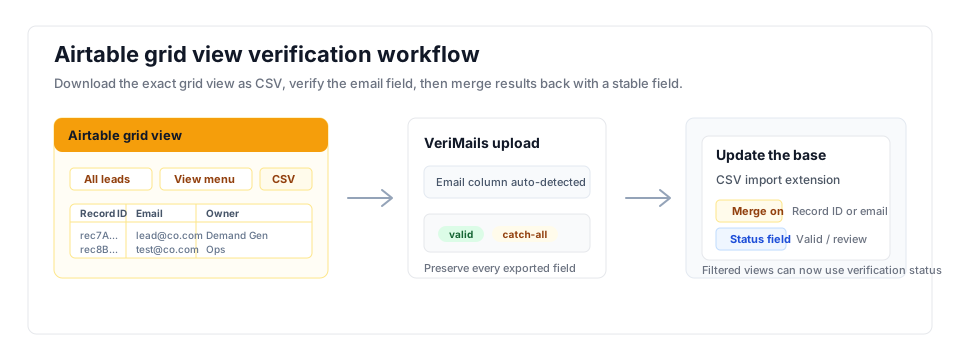
- Export scope: Use the grid view that matches the campaign, CRM sync, or operations view you plan to trust; spreadsheet-style workflows can follow the same pattern as the Google Sheets guide.
- Matching field: Keep record ID, name, company, or another stable field so bulk verification results can be matched back cleanly.
- Result action: Add a verification status field and filter automations away from invalid, disposable, and risky rows; use the Email Verification API when new records need automatic checks.
Step-by-Step
Download a grid view as a CSV
Open your base and the grid view that holds the email field. Click the dropdown arrow next to the view name and choose Download CSV. Grid view CSV export is available on the web and desktop apps. Before uploading, open the CSV and confirm the row count, the email column, and the stable record field all came through. If a filtered view was used, spot-check a few excluded records so the cleanup scope matches the audience you intend to update.
Create a free VeriMails account
Sign up for VeriMails. You get 100 verification credits free with no credit card required, enough to test the process or clean a small base. For larger bases, choose a credit pack or monthly plan that covers your record count before you upload.
Upload the CSV to VeriMails
Open the bulk verification tool and drag in the CSV downloaded from Airtable. The uploader automatically detects and maps the email column, so the field name does not matter and your other fields are preserved. Confirm the detected column before starting the job, then keep the raw Airtable export unchanged so you have a clean rollback file if an import mapping needs to be corrected.
Review valid, invalid, catch-all, and risky results
When the job completes, VeriMails sorts every address into clear categories: valid and safe to use, invalid and certain to bounce, catch-all where the server will not confirm the mailbox, and risky addresses such as disposable or role-based. Compare the invalid share with your normal bounce-rate guardrails from the bounce rate benchmarks, then inspect a few rows from each status so the recommended action makes sense for your base.
Bring the cleaned results back into Airtable
Download the filtered results from VeriMails. Import them into Airtable as a new table, or use the verification status to update a status field on your existing records so the base reflects which addresses are deliverable. QA the merge by comparing record IDs, checking duplicate emails, and filtering for blank statuses. Only after those checks should automations or synced views start using the verified field.
What to Do With Each Result
Use the verified CSV to update Airtable views and automations deliberately. A status field is more useful than a one-time cleaned export because teammates can filter and act on it later.
- Valid: Mark the record as verified, add the verified date, and keep it eligible for campaigns or CRM syncs.
- Invalid: Remove from sending views and add a cleanup note for the record owner.
- Catch-all: Keep in a review view. Send only when the contact is important and volume is low.
- Disposable: Exclude from lifecycle automations and inspect the source form or import that supplied the address.
- Role-based: Keep for account-level operations if useful, but exclude from personal outreach sequences by default.
- Unknown or risky: Hold in a separate view with source, owner, and consent fields visible for manual review.
Frequently Asked Questions
Related Guides
Try VeriMails Free
100 free credits on signup. No credit card required. Put this guide into practice today.
Start Free