How to Verify Emails in Smartlead
Smartlead is built for outbound at scale, sending across many connected mailboxes from a unified system. That scale makes list quality important, because an unverified lead list can create bounces across every sending account. This guide shows you how to export a Smartlead lead list to CSV, clean it with VeriMails, and re-import only valid rows.
TLDR
- Export from Campaign > Lead list > Filter > Download as CSV when you need lead status or category filters.
- Keep Email, name, company, category, status, campaign, and custom fields in the CSV for import mapping.
- Verify the exported file in VeriMails, then import only valid leads into the campaign.
- Use Smartlead's CSV mapping step to keep personalization variables and ignore fields you do not need.
Campaign Gate Checklist
Smartlead gives you several places to export or import leads. Use this table to keep the cleanup tied to the campaign state you actually plan to send.
| Gate | Exact check | Launch decision |
|---|---|---|
| Export path | Use Campaign > Lead list > Filter > Download as CSV for lead status and category filters. | Export the same segment that will be active in the next send. |
| Inbox exports | Use Campaign > Inbox > Filter > Download as CSV when you need reply or sequence-stage context. | Keep inbox exports separate from new-lead imports so activity history is not confused with pre-send hygiene. |
| Column mapping | Smartlead maps standard fields like Name, Email, and Location and lets you map custom variables. | Preserve personalization columns that your sequence uses, and ignore columns that do not affect sending. |
| Duplicate and block settings | Review import options for global block list, unsubscribe list, bounced leads, and leads already in another campaign. | Do not let a verified file override suppression rules without an explicit operator decision. |
| Launch hold | Keep the campaign paused until valid rows are imported and risky statuses are removed or segmented. | Prevents the first sequence step from becoming the quality test. |
Why Verify Your Smartlead Contacts
Smartlead is a cold email platform designed to run high-volume outbound from a large pool of mailboxes. Its warm-up and reputation features do not replace a list-quality check. If a lead list contains addresses that do not exist, the campaign can send, bounce, and create avoidable negative signals against your own accounts.
Bounces are distributed across every connected mailbox
Smartlead spreads a campaign across many sending accounts to keep per-mailbox volume low. When the lead list is unverified, invalid addresses can be dealt out across all of those accounts, so one dirty list can affect more than one mailbox. Verifying the list before upload keeps the highest-risk rows out of the main import.
Smartlead tracks bounce signals, but it cannot prevent the first bounce
Smartlead monitors bounce rates and reputation signals and adjusts sending automatically. That is reactive, triggered after bounces start. It cannot stop the first wave of hard bounces from a list it has never checked. Pre-send verification is the proactive layer that reduces avoidable first-wave bounces.
Outbound lead lists carry the highest error rates of any source
The leads loaded into Smartlead campaigns usually come from scraping tools, data providers, or older prospecting exports. These sources can carry higher error rates than a CRM you have maintained over time. Verifying before the campaign launch turns a raw outbound list into a status-labeled file operators can route before sending.
Catch-all and disposable addresses skew your campaign reporting
Some B2B domains are catch-all, accepting every address whether or not a mailbox exists. Smartlead has no way to distinguish a catch-all from a confirmed inbox. Scraped lists can also pick up disposable addresses that should stay out of normal outbound. Verification flags both so the master inbox is less skewed by review-needed rows.
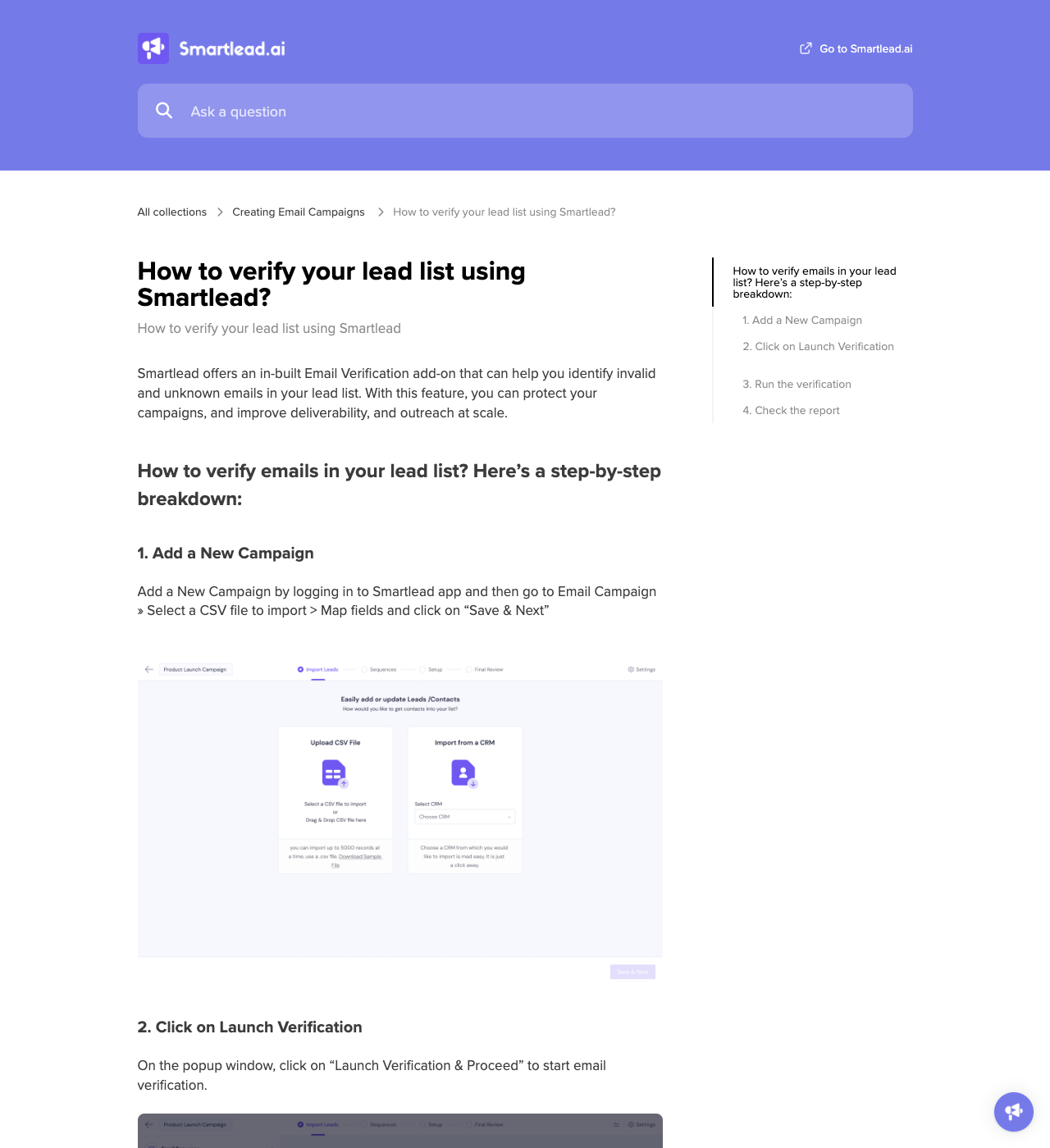
Smartlead Screens to Check Before You Send
Use these screens to plan verification before a high-volume Smartlead import. For the broader buyer comparison, see VeriMails vs Smartlead.
What VeriMails Checks
VeriMails runs every lead from your Smartlead export through bulk verification, with a layered set of checks that targets a different category of bad email and returns a clear status for each lead rather than a vague score.
It starts with syntax validation to catch malformed addresses, which are common in scraped outbound data. MX and DNS checks then confirm the domain exists and is configured to receive mail. A live SMTP handshake opens a real connection with the receiving mail server and confirms the specific mailbox will accept a message, without ever sending one, so your leads see nothing.
VeriMails also runs catch-all detection to identify domains that accept all addresses, disposable detection to flag throwaway inboxes that scraped lists often carry, and role-based detection to surface generic addresses like info@ or sales@. Catch-all status is reported as a clear detection result, never a vague rating. Across all of these checks VeriMails returns clear verification results that work well in live workflows.
Pricing for Smartlead Users
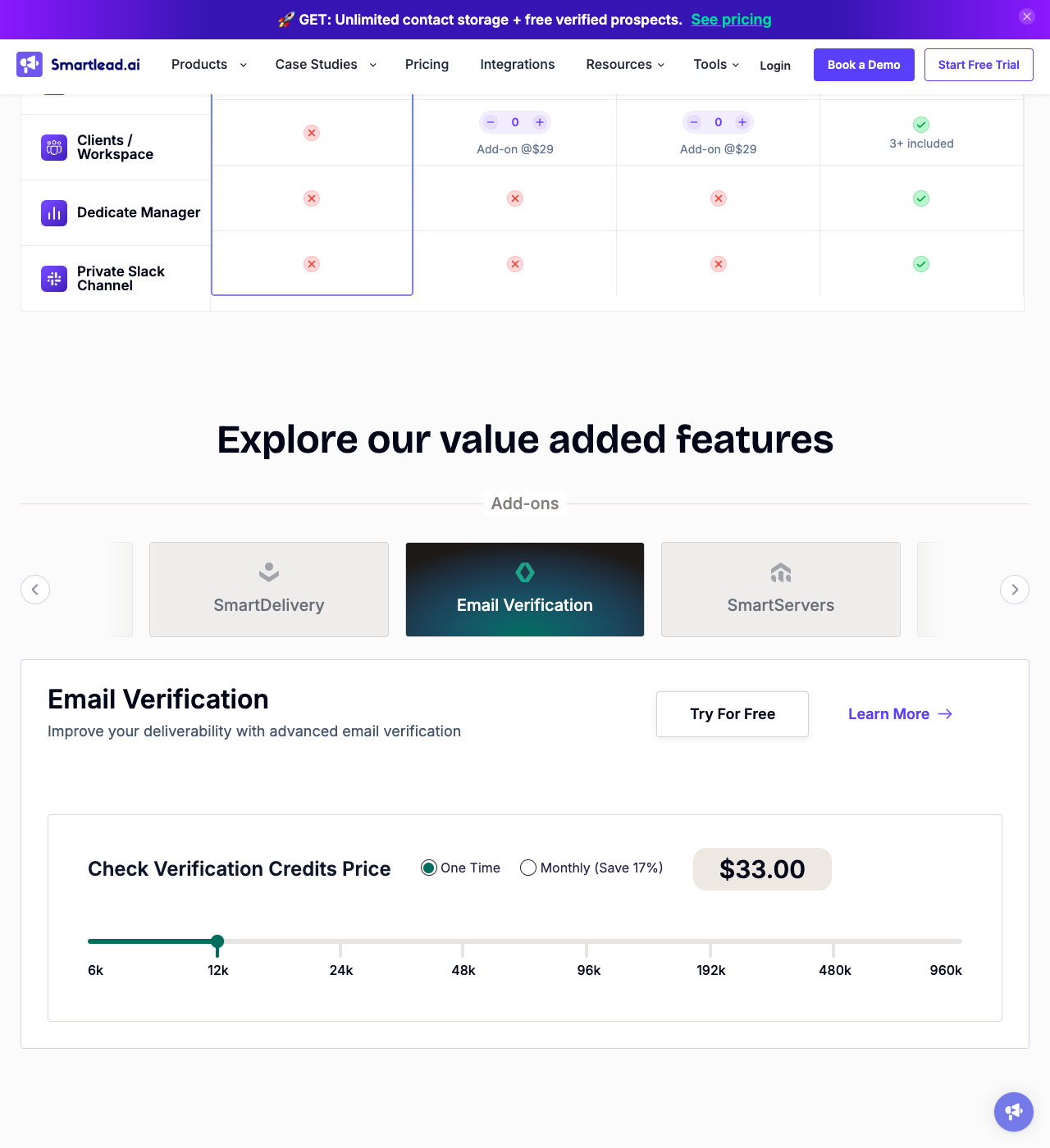
Verification is priced to suit teams running outbound at volume. VeriMails credits start at $0.0019 per email, so a 10,000-lead list costs about $19 on the entry pack. Credit packs scale up to 5 million verifications for $1,499, which fits agencies and teams cleaning very large lists, and credits never expire, so an unused balance carries forward to your next campaign.
If you launch campaigns continuously, annual plans start at $12.50/month when billed yearly. Every new VeriMails account includes 100 free credits with no credit card required, enough to verify a small lead list and see the result before committing. The most reliable habit is to verify every lead list immediately before you upload it into a Smartlead campaign, and teams that capture leads continuously can use the Email Verification API before lists reach campaign CSVs.
Step-by-Step
Open the campaign Lead list and apply a filter
In Smartlead, open the campaign and go to the Lead list. Apply a filter to scope the export. You can filter by email status such as Not contacted yet, In progress, Completed, or Stopped, or by the lead category you assigned in the master inbox. The campaign Inbox view also supports activity filters like Opened or Bounced.
Download the lead list as CSV
With your filter applied, click Download as CSV. Smartlead exports the lead names, email addresses, and engagement details for the filtered leads. No reformatting is needed because VeriMails reads the file exactly as it is.
Upload the lead CSV to VeriMails for bulk verification
Sign in to VeriMails, open bulk verification, and upload the Smartlead CSV. VeriMails automatically detects the email column, so there is no manual mapping. The job runs as a queued bulk verification while the syntax, MX, DNS, SMTP, catch-all, disposable, and role-based checks run.
Review the valid, invalid, catch-all, and risky results
VeriMails sorts every address by status. Valid addresses are the best candidates for the campaign. Invalid addresses carry high bounce risk and should be removed before the campaign starts. Catch-all results are flagged so you can decide whether to include them. Disposable and role-based addresses appear separately. Download the filtered valid results.
Re-import the cleaned list into Smartlead
Open your Smartlead campaign and upload the verified file as a CSV. Smartlead lets you map the CSV columns to lead fields during import. With only recently verified valid rows in the campaign, the first send starts from a cleaner list and lower avoidable bounce risk.
What to Do With Each Result
Smartlead can send at scale, so the verification decision should be strict before import. Treat each VeriMails status as a routing rule, not just a label.
- Valid Import into the campaign and map the fields required for personalization.
- Invalid Exclude from the import and keep the raw row only for audit or owner cleanup.
- Catch-all Keep in a separate decision list. Use only for high-value accounts and reduced volume.
- Disposable Remove from outbound workflows because the inbox is temporary and unlikely to support a real sales cycle.
- Role-based Route to manual review; generic inboxes need different copy and should not be mixed with person-level leads.
Frequently Asked Questions
Related Guides
Try VeriMails Free
100 free credits on signup. No credit card required. Put this guide into practice today.
Start Free