How to Verify Emails in Woodpecker
Woodpecker is a cold email tool built for agencies and small teams, and it sends prospect campaigns on an automated schedule. An unverified prospect list turns that schedule into a stream of bounces that erode your sender reputation. This guide shows you how to export Woodpecker prospects to CSV, clean them with VeriMails, and re-import only deliverable contacts.
TLDR
- Export from the campaign Prospects tab after choosing the group and filters that match the next send.
- Use Contacted No when cleaning prospects before first outreach, and keep activity groups separate from pre-send lists.
- Verify the exported CSV in VeriMails, then import only valid rows back into Woodpecker.
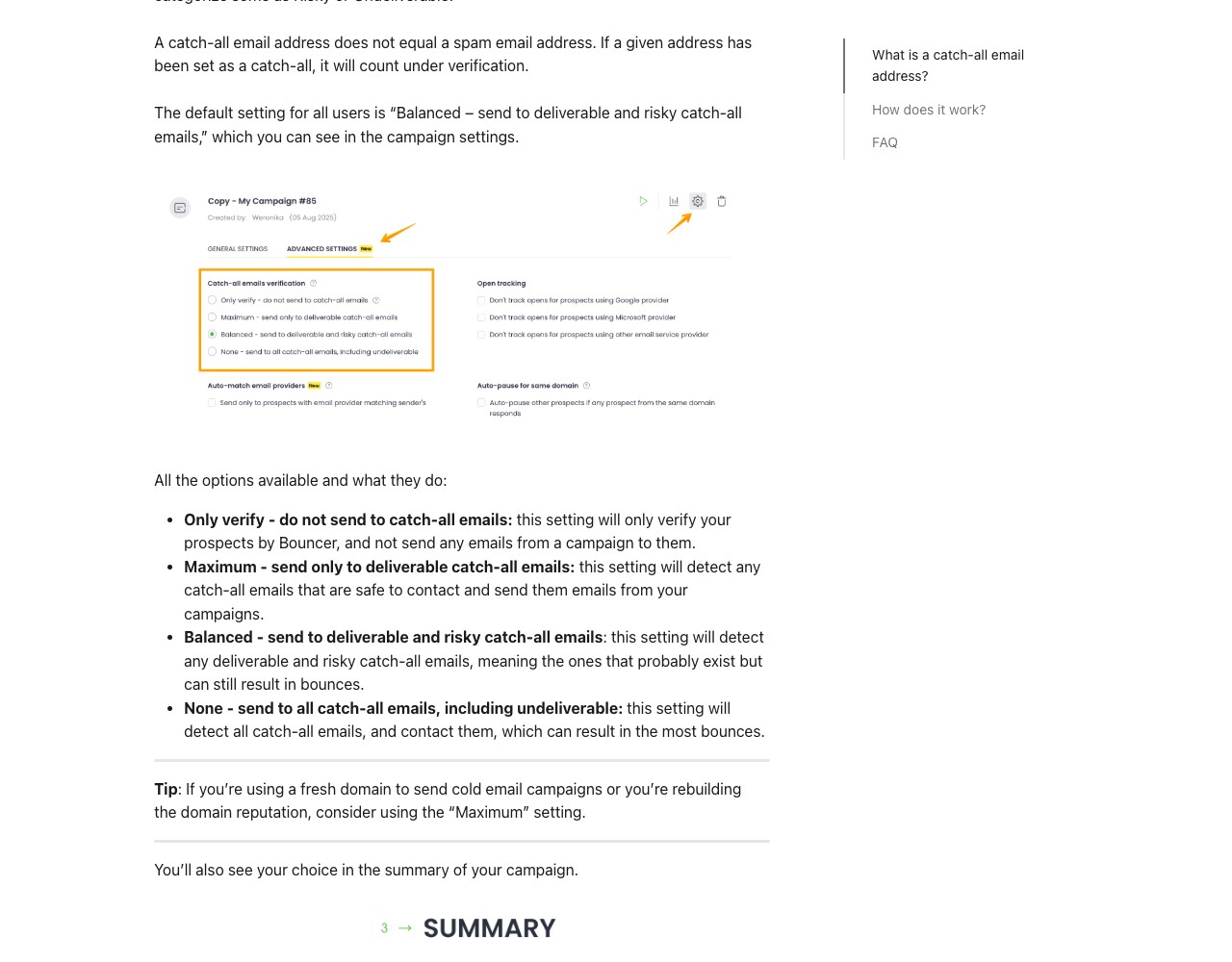
- Review catch-all settings before launch so uncertain prospects do not blend into confirmed-valid contacts.
- Keep invalid, disposable, and role-based rows out of campaign imports and update the source file.
Woodpecker Export Decisions
Woodpecker gives you campaign groups and filters. Use them to keep pre-send verification separate from post-send analysis.
| Decision | Best operating choice | Why it matters |
|---|---|---|
| Prospect group | Use All prospects for a full cleanup, or SENT, OPENED, BOUNCED, and similar groups for diagnostics. | Prevents campaign performance exports from being mistaken for a clean import file. |
| First-send filter | Apply Contacted No before exporting prospects that have not received outreach. | Keeps verification focused on the audience that can still be protected before a bounce occurs. |
| Columns to keep | Email, name, company, campaign, status, tags, and custom fields used in snippets. | Preserves personalization and makes import reconciliation easier. |
| Catch-all policy | Decide whether catch-all rows are excluded, reduced-volume, or manually reviewed before import. | Woodpecker campaign settings should match the risk decision made from the VeriMails result. |
| Import target | Create a clean prospect group or update the campaign only after result statuses are separated. | Gives agencies and operators a visible cleanup trail. |
Why Verify Your Woodpecker Contacts
Woodpecker is a cold outreach platform whose strength is consistent, scheduled sending across your connected mailboxes. That consistency works against you when the prospect list is dirty. The campaign sends on schedule, addresses that do not exist hard bounce, and the bounces stack up against your own sending account.
Woodpecker campaigns send to prospects without re-checking them
When you load prospects into a Woodpecker campaign, each follow-up step fires on the cadence you set. Woodpecker does not stop to confirm whether each prospect still has a live mailbox. If part of the list is invalid, that part bounces on every step until the campaign finishes. Verifying the prospect list before you add it removes the bad addresses once.
Prospect data drifts out of date between sourcing and sending
Prospects loaded into Woodpecker from a data provider, event list, CRM export, or older outbound file were often valid when sourced but can quietly go stale. An address that worked last quarter can bounce this quarter. Verifying right before the campaign launch catches that drift.
Bounce rate is a reputation signal that follows your sending account
Mailbox providers read bounce rate as a measure of list quality. A rate above 5 percent is actively damaging and signals to Gmail and Microsoft that you are sending to an unclean list. They respond by routing more of your campaign to spam, including messages to valid prospects. Cold outreach should stay under a 2 percent bounce rate, and verification is the most direct way to hold that line.
Catch-all and disposable addresses inflate your prospect counts
A large share of B2B domains are configured as catch-all, accepting every address whether or not a real mailbox exists. Woodpecker cannot tell a catch-all from a confirmed inbox. Imported lead lists can also include disposable addresses that should never enter a campaign. Verification flags both so your prospect groups and reply rates reflect real, reachable people.
Woodpecker Screens to Check Before You Send
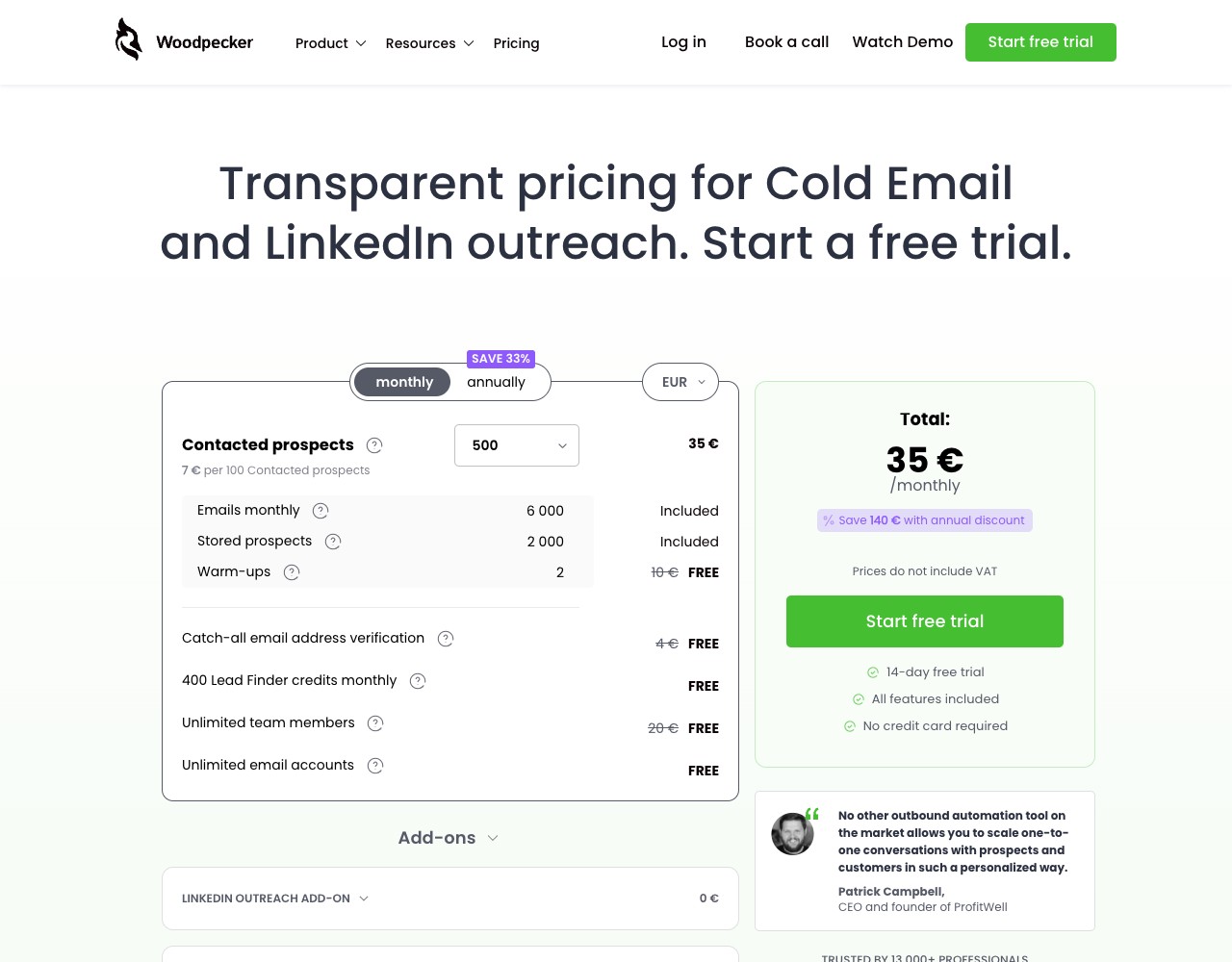
Use these screens to decide how Woodpecker verification fits into your pre-send workflow. For the full buyer comparison, see VeriMails vs Woodpecker.
What VeriMails Checks
VeriMails runs every prospect from your Woodpecker export through bulk verification, with a layered set of checks that targets a different category of bad email and returns a clear status for each prospect rather than a vague score.
It starts with syntax validation to catch malformed addresses, which are common in manually assembled lead files. MX and DNS checks then confirm the domain exists and is configured to receive mail. A live SMTP handshake opens a real connection with the receiving mail server and confirms the specific mailbox will accept a message, without ever sending one, so your prospects see nothing.
VeriMails also runs catch-all detection to identify domains that accept all addresses, disposable detection to flag throwaway inboxes that imported lists often carry, and role-based detection to surface generic addresses like info@ or office@. Catch-all status is reported as a clear detection result, never a vague rating. Across all of these checks VeriMails returns clear verification results that work well in live workflows.
Pricing for Woodpecker Users
Verification is priced to fit agencies and small teams running cold campaigns. VeriMails credits start at $0.0019 per email, so a 10,000-prospect list costs about $19 on the entry pack. Credit packs scale up to 5 million verifications for $1,499, which suits agencies cleaning many client lists, and credits never expire, so an unused balance carries forward to your next campaign.
If you run campaigns continuously, annual plans start at $12.50/month when billed yearly. Every new VeriMails account includes 100 free credits with no credit card required, enough to verify a small prospect list and see the result before committing. The best habit is to verify every prospect list immediately before you add it to a Woodpecker campaign.
Step-by-Step
Open the campaign Prospects tab and choose a group
In Woodpecker, open the campaign and go to the Prospects tab. Choose a prospect group such as SENT, OPENED, BOUNCED, or All prospects. To export only uncontacted prospects, apply the Contacted No filter. Other filters like email sent count let you refine the group further before exporting.
Select prospects and export as CSV
Check the prospects you want to export, or click Select all prospects to mark every contact in the group. Open the Actions menu and choose Export as CSV. Woodpecker downloads the prospect data including names, email addresses, and campaign activity.
Upload the prospect CSV to VeriMails for bulk verification
Sign in to VeriMails, open bulk verification, and upload the Woodpecker CSV. VeriMails automatically detects the email column, so there is no manual mapping. The job runs as a queued bulk verification while the syntax, MX, DNS, SMTP, catch-all, disposable, and role-based checks run.
Review the valid, invalid, catch-all, and risky results
VeriMails sorts every address by status. Valid addresses are safe to contact. Invalid addresses would hard bounce and should be removed before the campaign starts. Catch-all results are flagged so you can decide whether to include them. Disposable and role-based addresses appear separately. Download the filtered valid results.
Re-import the cleaned list into Woodpecker
Open your Woodpecker campaign and add prospects from the verified CSV. Woodpecker accepts CSV and Excel files and maps the columns to prospect fields during import. With only verified prospects in the campaign, the bounce rate stays low and your sender reputation stays protected.
What to Do With Each Result
Woodpecker campaigns should receive only rows that match the campaign risk policy.
- Valid Import into the campaign and map the custom fields used by snippets.
- Invalid Exclude and update the source list so the address is not reused.
- Catch-all Route to a smaller monitored group or exclude unless the account is high value.
- Disposable Remove from campaigns because the inbox is temporary.
- Role-based Review manually; shared inboxes often need different copy and lower volume.
Frequently Asked Questions
Related Guides
Try VeriMails Free
100 free credits on signup. No credit card required. Put this guide into practice today.
Start Free