How to Verify Emails in Omnisend
Omnisend stores grow contact lists fast through pop-ups, checkout opt-ins, and SMS sign-ups, and not every address that lands in your audience is real or deliverable. Verifying your Omnisend contacts before your next campaign keeps bounce rates low, protects your sender reputation, and gives you the files needed to keep dead addresses out of campaign segments and future imports. This guide shows you how to export, verify, and re-import a clean list.
Export the Omnisend list or segment you plan to use, verify the CSV with bulk verification, then re-import valid contacts with a dated cleanup tag. Suppress or exclude invalid and disposable rows, and keep catch-all or role-based rows in review segments before campaigns and automations. This fits the broader email marketing cleanup workflow.
Why Verify Your Omnisend Contacts
Omnisend is built for ecommerce, which means your audience grows from a wide mix of sources: signup forms and pop-ups on your storefront, checkout opt-ins, wheel-of-fortune and discount widgets, landing pages, and contact imports from past platforms. Each of those channels carries its own risk of bad data, and over time that risk compounds into a measurable deliverability problem.
Pop-ups and checkout forms collect typos and fake addresses
A shopper rushing through checkout to claim a discount will mistype an address, or deliberately enter a throwaway address to grab the coupon without committing to your list. Omnisend captures whatever is typed. Without verification, addresses like "jane@gmial.com" or disposable inbox domains sit in your audience and bounce on the first send.
Bounces directly damage your sender reputation
Mailbox providers such as Gmail and Outlook watch bounce rate closely. When a campaign repeatedly hits addresses that do not exist, future mail is more likely to be filtered or blocked, and that reputation damage affects every contact on your list, not just the bad ones. The bounce rate benchmarks show why a single send to an uncleaned list can undo months of good sending history.
Billable contacts and email credits need clean inputs
Omnisend pricing is driven by billable contacts and plan limits. Billable contacts include subscribers and non-subscribers, while unsubscribers are excluded; Standard plans also calculate email credits from contact count. Verification gives you the files needed to keep invalid addresses out of subscribed and non-subscribed imports, update subscription status when appropriate, and build campaign segments from real recipients instead of dead rows.
Imported and migrated lists are the highest risk
If you moved to Omnisend from Mailchimp, Klaviyo, or another platform, your imported list may contain addresses that have been decaying for years as people change jobs, abandon inboxes, or mistype addresses during older signup flows. An import is the single best moment to verify, because you are about to send to addresses that have not been mailed in a while.
What VeriMails Checks
VeriMails runs a layered set of checks on every address in your Omnisend export so you know exactly which contacts are safe to keep. The email verification guide explains how each address is tested before it returns a result.
Syntax validation confirms the address is correctly formed before any network checks run. MX and DNS records are queried to confirm the domain exists and is actually configured to receive mail. A live SMTP handshake connects to the receiving mail server and checks whether the specific mailbox accepts mail, without sending anything. Catch-all detection identifies domains that accept every address sent to them, so you can treat those contacts with appropriate caution. Disposable detection flags temporary and throwaway inbox domains that should never be in a marketing list. Role-based detection identifies generic addresses such as info@, sales@, and support@ that tend to drive low engagement and complaints.
VeriMails verification runs layered checks and returns a clear result for each address. Catch-all results are reported as a clear detection so you can make an informed decision, never as a vague score that leaves you guessing.
Pricing for Omnisend Users
VeriMails pricing keeps Omnisend list hygiene practical for one-off imports and regular cleanup. Credit packs start at $0.0019 per email, and 10,000 credits cost $19. Credit packs scale up to 5 million addresses for $1,499, which suits large stores and agencies managing multiple Omnisend accounts. The full pricing page helps plan import checks and recurring list hygiene.
If you prefer predictable billing, annual plans start at $12.50/month when billed yearly. Every new account gets 100 free credits on signup with no credit card required, and credits never expire, so you can verify a list now and keep the rest for your next import.
Workflow Visual
Use this flow to clean Omnisend contacts before e-commerce segments and campaigns send.
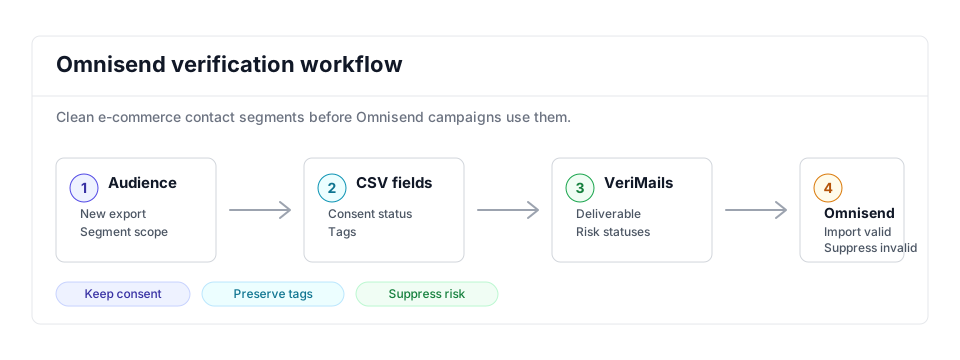
- Export scope: Use the audience export that matches the segment, form source, or campaign group you are preparing; ecommerce teams can compare the Klaviyo workflow.
- Matching field: Keep email, consent status, tags, and store context needed for Omnisend segmentation while bulk verification runs.
- Result action: Import deliverable contacts and keep invalid, disposable, and uncertain rows out of promotional campaigns and email marketing segments.
Step-by-Step
Export the right contacts
In Omnisend, open Audience and go to the Export page, then click New Export. Choose all contacts, contacts by email subscription status, contacts in a specific segment, or contacts with a specific tag. Click Export, then return to Audience and the Exports tab and click Download once the file is ready. Smaller lists often finish quickly, while larger exports can take several minutes. Only Owner, Admin, or Analyst roles can export. QA the scope by comparing the export row count to the Omnisend segment or tag count before continuing.
Inspect the exported columns
Omnisend exports email, subscription status, consent dates, tags, segments, and custom properties. Keep Email, subscription status, consent proof, tags, and segmentation fields you need for the import. Save the raw export before editing so the verification output can be reconciled against the original audience. Check for blank emails, duplicate contacts, and missing consent fields before upload.
Upload and verify in VeriMails
Sign in to VeriMails and open Bulk Verification. Upload the Omnisend CSV and let VeriMails detect the email column. Confirm the mapped column before starting the queued job. When the job completes, download the valid file plus separate invalid, catch-all, disposable, and role-based files. These files become your import, exclusion, and review inputs.
Build the clean import file
Use the valid file as the import base and keep only catch-all contacts you intentionally approve. Preserve the original Omnisend columns that should map back to email, consent, tags, and custom profile properties. Keep invalid, disposable, and role-based rows out of the main import, and confirm that the clean file plus exclusion files add back to the original export count.
Re-import and tag the valid list
In Omnisend, go to Audience then Contacts, choose Add or Update Contacts, select File Import, and upload the cleaned CSV. Map columns to Omnisend fields, choose the correct subscription treatment, and add a tag such as verimails-valid or verified-2026-05. Review the import summary, skipped rows, and tag count before using the tag in campaigns.
Exclude risky rows from sends
Use invalid, disposable, and role-based files to update subscription status, delete records when your retention policy allows it, or create exclusion tags. Check Audience then Total billable contacts after cleanup, and build campaigns from the verified tag while excluding review groups. Before sending, preview the final segment and verify that invalid and disposable tags are excluded.
Operator Checklist
Use this checklist to keep the Omnisend cleanup tied to real campaign behavior and current billing logic.
| Check | What Good Looks Like | Why It Matters |
|---|---|---|
| Export scope | The export matches the campaign group: all contacts, subscription status, segment, or tag. | Keeps verification aligned with the audience you will actually message. |
| Consent fields | Email subscription status, consent dates, tags, and source fields are retained when needed for import decisions. | Protects permission and segmentation context. |
| Valid import | Valid contacts are imported or updated with a dated verification tag and the correct subscription treatment. | Makes clean contacts easy to target later. |
| Risk handling | Invalid, disposable, role-based, and unapproved catch-all rows are excluded from campaigns or updated according to your retention policy. | Prevents risky statuses from quietly returning to campaign sends. |
| Billing check | Audience then Total billable contacts is checked after cleanup, especially when invalid contacts were previously subscribed or non-subscribed. | Confirms the cleanup affected the audience metrics operators care about. |
Frequently Asked Questions
Related Guides
Try VeriMails Free
100 free credits on signup. No credit card required. Put this guide into practice today.
Start Free