How to Verify Emails in GMass
GMass turns Gmail into a mass email tool, which means every campaign you send rides on your own Gmail or Google Workspace reputation. A list full of dead addresses bounces straight against your account and can trigger Gmail's rate limits. Verifying your list before you hit send keeps bounces low and your sending account healthy. This guide walks through exporting your GMass list, cleaning it with VeriMails, and re-importing a verified Google Sheet.
TLDR
- Most GMass campaigns start from a Google Sheet; export that sheet as CSV for VeriMails verification.
- If GMass expands recipients from a Gmail label or alias, download the expanded recipient CSV before verifying.
- Keep Email Address plus merge columns exactly as the mail merge uses them.
- After verification, rebuild a Google Sheet with valid rows only because GMass campaigns connect to Sheets, not raw CSV files in Drive.
- Hold catch-all, disposable, role-based, and invalid rows outside the main send sheet.
GMass List Decisions
GMass list quality starts in Google Sheets. Make the verified sheet the source of truth before Gmail sends.
| Decision | Best operating choice | Why it matters |
|---|---|---|
| List source | Use the actual campaign Google Sheet whenever possible. | It preserves the merge columns GMass will use during send. |
| Label or alias lists | Download the expanded recipient list from GMass before verification. | Verifies the final recipient set, not just the label or alias name. |
| Merge columns | Keep Email Address plus name, company, and custom fields used in the message. | Valid rows still need the personalization data required by the campaign. |
| Return format | Create a new Google Sheet or replace the campaign source sheet with valid rows only. | GMass reads from Sheets, so the cleaned CSV needs to become a Sheet before sending. |
| Send check | Use a test send after reconnecting the cleaned Sheet. | Confirms merge fields and recipients before your Gmail account sends at volume. |
Why Verify Your GMass Contacts
GMass is a Chrome extension that lets you run mail merge campaigns, cold outreach, and newsletters directly inside Gmail. Instead of a separate CRM, GMass manages recipients through a connected Google Sheet, and you can also send to Gmail labels or alias addresses. Because it sends as you, the health of your campaign is tied directly to the health of your Gmail account.
The first reason to verify is that bounces hit your own account. There is no shared sending pool absorbing the damage. When you send a GMass campaign to invalid addresses, Gmail records those hard bounces against your personal sending reputation, and that reputation governs whether future mail lands in the inbox.
The second reason is Gmail's sending limits. Gmail and Google Workspace enforce daily caps on how many messages an account can send, and Google watches bounce and spam-complaint rates closely. A campaign with a high bounce rate is exactly the pattern that gets an account throttled or temporarily restricted. Verifying first keeps you inside safe limits.
The third reason is the data sources GMass users tend to rely on. Lists often come from Google Sheets assembled from old exports, signup forms, CRM files, or contacts pulled from Gmail labels. That data ages and contains typos. A verification pass catches the addresses that would bounce before they ever reach a send. The fourth reason is campaign accuracy. GMass reports opens, clicks, and replies, and those numbers are only meaningful if the first email actually arrived. Verifying upfront means your reporting reflects real recipient behavior rather than being dragged down by addresses that never received anything.
GMass Screens to Check Before You Send
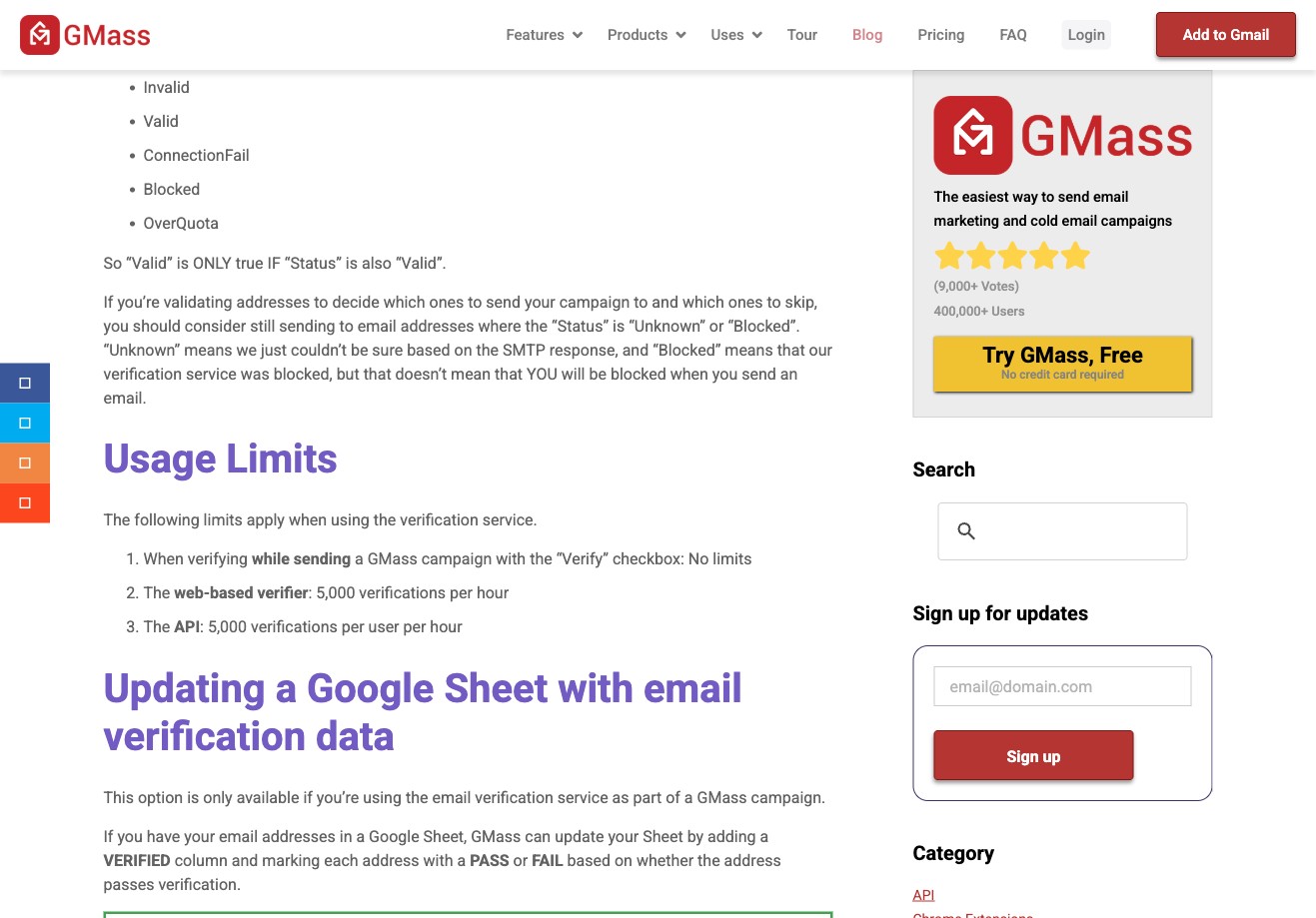
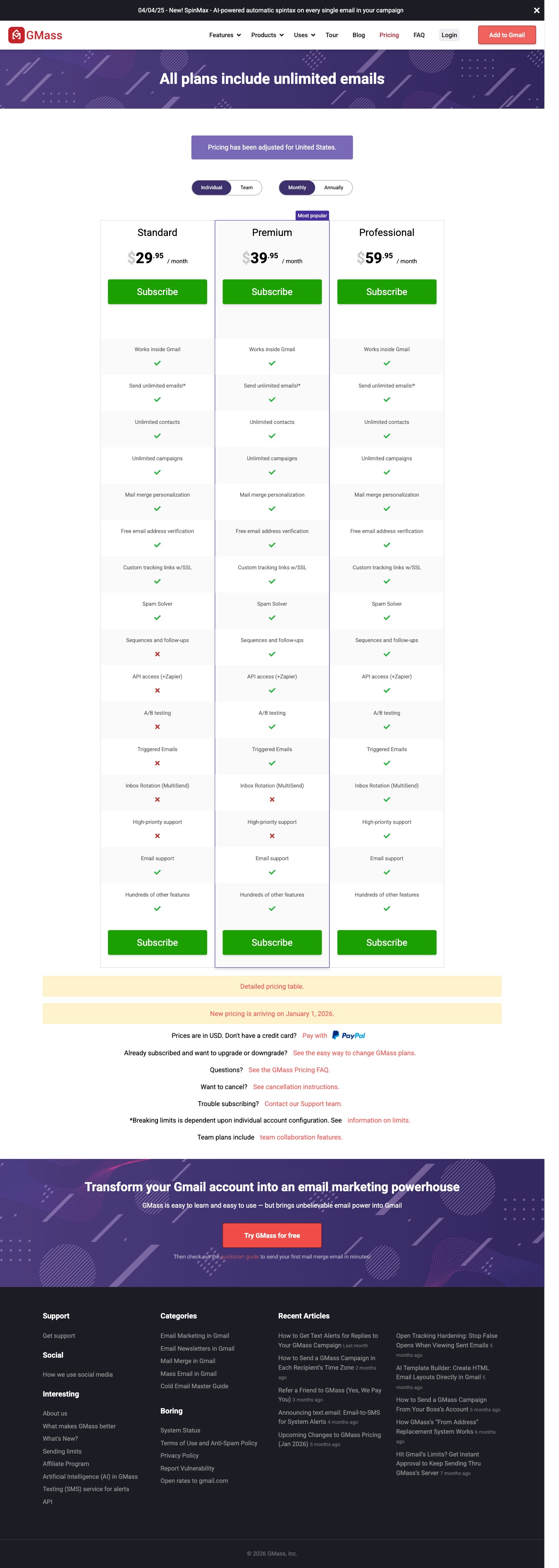
Use these screens to decide whether GMass's included verification covers the list you are about to send from Gmail. For the broader buying context, see VeriMails vs GMass.
What VeriMails Checks
VeriMails runs every address through bulk verification, so the Google Sheet you point GMass at contains addresses you can actually reach. Each layer targets a distinct reason a send would otherwise fail.
Syntax validation confirms the address is correctly formatted. MX and DNS checks confirm the domain exists and is set up to receive mail, which removes typo domains and defunct companies. The live SMTP handshake connects to the receiving mail server and confirms the specific mailbox is present, which is the most reliable signal that a GMass send will be delivered rather than bounced.
VeriMails also performs catch-all detection. A catch-all domain accepts mail for any address at that domain, so the server cannot confirm whether one specific mailbox exists. VeriMails reports this as a detection result, not a score, leaving the decision with you. Disposable detection flags temporary inbox domains that signal low-quality signups, and role-based detection identifies generic addresses such as info@, support@, and admin@ that perform poorly in personalized campaigns. VeriMails returns a clear verification result for each address.
Pricing for GMass Users
VeriMails pricing is simple and scales with how much you send. Verification starts at $0.0019 per email. A 10,000-credit pack costs $19, which covers a substantial newsletter or outreach list, and credit packs scale up to 5 million credits for $1,499 for high-volume senders and agencies running GMass across many accounts.
If you send on a regular schedule, annual plans start at $12.50/month when billed yearly and often cost less than buying packs ad hoc. Every new account starts with 100 free credits and no credit card required, so you can verify a sample of your Google Sheet and see the results before spending. Credits never expire, so a pack you buy stays usable for your next campaign.
Reading Your Verification Results
When a VeriMails run completes, every address in your GMass list carries a clear status, and knowing what each one means tells you what belongs in your next campaign. Valid addresses passed every check, including the live SMTP handshake, and are safe to send to. Invalid addresses failed a definitive check, usually because the mailbox does not exist or the domain cannot receive mail, and removing them is what keeps bounces off your Gmail account.
Catch-all and how to treat it
Catch-all results come from domains configured to accept mail for any address. Because the server will not confirm a single mailbox, VeriMails reports the address as catch-all detection rather than valid or invalid. Many real businesses run catch-all domains, so these are not automatically bad contacts. For GMass campaigns, a sensible approach is to send to high-value catch-all addresses in a smaller batch while watching the bounce data, and to hold lower-priority catch-all addresses until you have a clearer picture of the domain.
Disposable and role-based results
Disposable addresses use temporary inbox domains and are common in lists built from form signups or promotions. They rarely belong to a lasting contact, so they are usually not worth a campaign slot. Role-based addresses such as info@ or support@ reach a shared inbox rather than a person, and personalized outreach tends to underperform there. Neither is strictly invalid, but both are best treated as lower priority. Sorting your GMass list by these statuses before you rebuild the Google Sheet keeps each campaign focused on the most reachable recipients.
Step-by-Step
Export your GMass list as a CSV
GMass campaigns are built from a Google Sheet. Open that sheet and choose File, then Download, then Comma-separated values to export a CSV. If your recipients came from a Gmail label or alias, GMass lets you download the expanded recipient list as a CSV from the Gmail compose window. Either way, you end up with a CSV containing the email column.
Upload the CSV to VeriMails
Log in to VeriMails, open the bulk verification tool, and upload your exported file. VeriMails automatically detects and maps the email column, so you do not need to reformat anything. The job runs as a queued bulk verification and shows downloadable filtered results when it completes.
Review your verification results
When the run completes, VeriMails groups every address by status: valid, invalid, catch-all, disposable, and role-based. Review the breakdown to see how much dead weight your list carried, then download the filtered results. Keep the valid addresses and decide how to handle catch-all results based on your campaign type.
Re-import the cleaned list into a Google Sheet for GMass
Open a new Google Sheet, then use File and Import to bring in your cleaned CSV, or paste the valid addresses directly. GMass cannot read CSV files from Drive, so the list must live in a Google Sheet. Connect your GMass campaign to that sheet and your campaign now sends to a verified list.
Verify before every campaign
List data decays and new signups arrive constantly, so verify each list before you send and re-verify standing lists every few months. Building this into your routine keeps your GMass bounce rate low and your Gmail sending account in good standing.
What to Do With Each Result
GMass campaigns should connect to a Google Sheet built from the verified valid file, not a mixed result export.
- Valid Add to the clean Google Sheet and preserve the merge columns used by GMass.
- Invalid Exclude and clean the source sheet so the address is not reused.
- Catch-all Hold for a smaller monitored send only when the recipient is high value.
- Disposable Remove from campaigns because the inbox is temporary.
- Role-based Review manually; shared inboxes often need different copy than person-level mail merge.
Frequently Asked Questions
Related Guides
Try VeriMails Free
100 free credits on signup. No credit card required. Put this guide into practice today.
Start Free