How to Verify Emails in MailerLite
MailerLite prices plans around active subscriber count and watches deliverability across its sending infrastructure. A group full of dead addresses can distort list quality and steadily push your campaigns toward the spam folder. Verifying your subscribers before you send keeps bounces low, protects your sender reputation, and gives you the files needed for accurate subscriber cleanup.
Export the MailerLite group or segment with the visible fields you need, verify the CSV with bulk verification, and re-import a valid-only group with a dated tag. Remove or suppress invalid and disposable rows according to your account policy, and keep catch-all or role-based rows out of the main campaign audience until reviewed. This supports recurring email marketing cleanup.
Why Verify Your MailerLite Contacts
MailerLite is a simple email marketing platform popular with creators and small businesses for newsletters and automated campaigns. It checks address syntax at signup and removes subscribers after they hard bounce, but it does not continuously confirm whether each address is still deliverable. Addresses age, inboxes are abandoned, and imported groups carry typos. MailerLite only registers the problem after a campaign bounces, and by then the send has already counted against your reputation.
Bounces damage your sender reputation
Mailbox providers such as Gmail, Outlook, and Yahoo treat bounce rate as one of the clearest signals of list quality. When your MailerLite campaigns repeatedly hit addresses that do not exist, those providers route more of your mail to spam. MailerLite operates deliverability monitoring on its shared sending infrastructure and is known for actively reviewing accounts that mail low-quality lists, so a high bounce rate can lead to a review or sending restrictions. Verifying before you send keeps bounces in the low fractions of a percent, which is the range that keeps you in the inbox.
You are billed by subscriber count
MailerLite billing is based on active subscribers, and it uses a cumulative count during each billing cycle. An invalid, abandoned, or mistyped address can remain part of that active count until you delete or unsubscribe it, and may still count until the cycle resets. Verification identifies those records so you can improve list hygiene and check the Plan and billing page after cleanup.
Imports are easier to manage when lists are clean
An import full of low-quality or risky addresses creates extra cleanup work before you can send confidently. Verifying the list before you import it gives MailerLite a cleaner group and gives your team a clearer view of which subscribers belong in campaigns.
Risky subscribers need separate handling
Subscriber groups built over several years tend to accumulate role-based addresses such as info@ or team@, temporary inboxes, and stale contacts. VeriMails labels invalid, disposable, role-based, and catch-all results separately so you can remove or isolate them before they affect campaign quality.
What VeriMails Checks
VeriMails runs each address through several independent layers rather than a single pass-or-fail test. Each layer removes a different category of bad address, and the result is a practical status you can use for imports, removals, and review groups.
Syntax, MX, and DNS
The first checks confirm the address is correctly formatted, the domain resolves in DNS, and the domain publishes valid MX records pointing to a real mail server. An address that fails any of these can never receive a MailerLite campaign, so it is filtered out immediately.
Live SMTP handshake
VeriMails opens a real SMTP conversation with the receiving mail server to confirm that the specific mailbox accepts mail. This goes beyond confirming the domain works and confirms the individual address is deliverable. It is the check that best predicts whether your MailerLite send will reach the inbox or bounce.
Catch-all, disposable, and role-based detection
Some domains are configured as catch-all and accept mail for any address whether or not the mailbox exists. VeriMails applies catch-all detection and labels these results separately so you can treat them with care. It also flags disposable addresses from temporary-inbox services and role-based addresses tied to a function rather than a person. With each category labeled, you keep the subscribers worth mailing and set the rest aside.
Pricing for MailerLite Users
VeriMails keeps verification affordable next to the value of a clean MailerLite list. Credit packs start at $0.0019 per email, and a 10,000-credit pack costs $19. Credit packs scale up to 5 million credits for $1,499, which suits large lists and agencies handling several MailerLite accounts.
For teams that verify on a regular cadence, annual plans start at $12.50/month when billed yearly and bring the per-email cost down further. For MailerLite users, routine verification is strongest as list hygiene: fewer stale subscribers in sends, clearer group exports, and better evidence for subscriber-count cleanup after the billing-cycle rules apply.
You can try VeriMails without paying. Signup includes 100 free credits, no credit card is required, and credits never expire, so you can verify a sample group exported from MailerLite and review the results before committing.
Workflow Visual
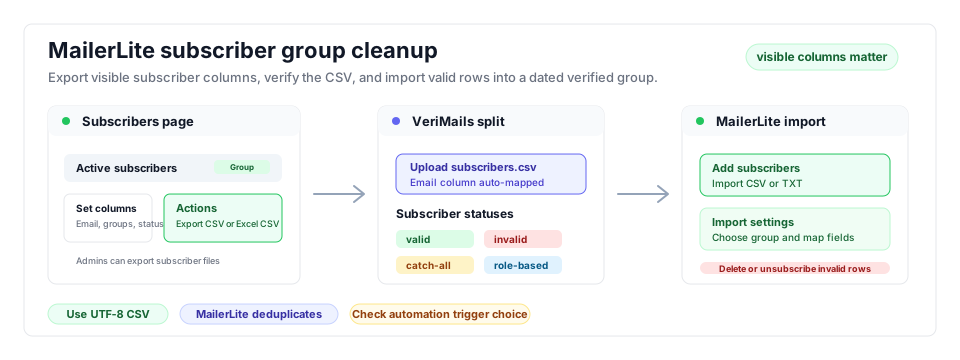
MailerLite list quality is easiest to manage when you export a group, import a verified group, and remove invalid subscribers before they receive another campaign.
- Newsletter hygiene: Use this workflow before major email marketing campaigns and list imports.
- Bulk verification: Run the CSV through bulk verification to split valid subscribers from risky results.
- Related platforms: Compare list cleanup in GetResponse and Brevo.
Step-by-Step
Export your group from MailerLite
In MailerLite, open the Subscribers page and filter by group or by status if you want to verify a specific set. Use the dropdown next to the Subscriber column to select all subscribers. Click Set columns to make sure the email field is included, then click Actions and choose Export CSV file. Account administrator access is required to run the export.
Upload the CSV to VeriMails
Sign in to VeriMails and open the bulk verification tool. Drag in the CSV file you exported from MailerLite. VeriMails automatically detects the email column, so there is no need to reformat the file or strip out the other subscriber fields. The job runs as a queued bulk verification and shows downloadable filtered results when it completes.
Review the verification results
When the run completes, VeriMails groups each address by status: valid, invalid, catch-all, disposable, and role-based. Review the breakdown to understand the health of your MailerLite list, then download the filtered results. The valid-only file is your list of subscribers that are safe to keep mailing.
Re-import the cleaned list into MailerLite
Back in MailerLite, open the Subscribers page, click Add subscribers, and choose Import from a CSV or TXT file. Upload the valid-only file from VeriMails. On the import settings page, select an existing group or type a new group name such as Verified, map each column to the correct field, and choose whether associated group automations should trigger. MailerLite updates existing subscribers rather than creating duplicates.
Remove or quarantine the invalid addresses
Use the invalid file from VeriMails to find those addresses in MailerLite and delete or unsubscribe them so they stop receiving campaigns. Then check active subscriber count and billing-cycle timing before assuming they no longer affect plan limits. Keep catch-all addresses in a separate group rather than deleting them, since a share of them will be deliverable. Verifying again before each major campaign keeps your MailerLite list clean over time.
MailerLite Cleanup Checklist
Use this operator table before a campaign, automation, or group import. It keeps the bulk verification result aligned with MailerLite groups and subscriber status.
| Check | What to do | Why it matters |
|---|---|---|
| Group scope | Export the exact group, status filter, campaign activity group, or automation activity group you plan to email. | Keeps verification tied to the send that will affect bounce rate and subscriber count. |
| Visible columns | Use Set columns to include email, groups, status, signup source, and fields needed for personalization. | MailerLite exports the visible columns, so field selection controls what survives cleanup. |
| Verified group | Import valid rows into a dated verified group while letting MailerLite update existing subscribers. | Creates a clean targeting group without duplicate subscribers. |
| Invalid rows | Delete or unsubscribe invalid and disposable addresses; keep catch-all rows in a review group if needed. | Stops bad addresses from entering campaigns again and supports subscriber-count cleanup when billing-cycle rules allow it. |
| QA before send | Send the campaign from the verified group and exclude review groups from the audience. | Turns verification results into a concrete campaign safeguard. |
Frequently Asked Questions
Related Guides
Try VeriMails Free
100 free credits on signup. No credit card required. Put this guide into practice today.
Start Free