How to Verify Emails in ActiveCampaign
ActiveCampaign prices plans around contact limits and may tie sending limits to that number, so stale addresses can affect both list hygiene and campaign operations. Verifying contacts before you send helps reduce avoidable bounces, supports sender reputation management, and gives you files for cleanup decisions under your account and retention rules.
TLDR
- Export the exact ActiveCampaign list or segment you plan to mail, then run the CSV through bulk verification before the next campaign.
- Re-import valid contacts with a fresh tag or list, and use invalid, disposable, role-based, and catch-all results to build cleanup and suppression groups.
- Use the cleaned file to reduce avoidable bounces and review contact-count changes against your ActiveCampaign plan before scaling sends.
Why Verify Your ActiveCampaign Contacts
ActiveCampaign is a capable marketing automation platform, but it does not promise that the addresses in your lists are deliverable. It checks basic syntax when someone signs up and it removes contacts that hard bounce after a campaign goes out, yet that is reactive cleanup. By the time ActiveCampaign records a bounce, the message has already been sent and the receiving mail server has logged a failed delivery against your sending domain. Verification before the send helps interrupt that cycle by giving operators a review file first.
High bounces can hurt sender reputation
Mailbox providers such as Gmail, Outlook, and Yahoo watch bounce rate as a list-quality signal. A sender who repeatedly mails addresses that do not exist may see more filtering, and ActiveCampaign accounts with high bounce rates can face throttling or compliance review. Verifying first gives you a way to exclude likely invalid addresses before the campaign and reduce avoidable bounce pressure.
You are billed by contact count
ActiveCampaign plans use contact limits, and the exact contacts counted can vary by account, creation date, and current plan terms. Verification identifies invalid, abandoned, or mistyped addresses so you can delete, archive, unsubscribe, or exclude them according to your account model and retention policy; confirm the contact limit after cleanup before assuming a billing impact.
Your sending limit is tied to that same count
Some ActiveCampaign plans tie monthly email volume to contact limits, so unnecessary contacts can complicate both audience planning and send-volume planning. Review the current limit shown in your account before changing records. A verified-valid list means the contacts in the campaign segment are more likely to be reachable after consent, suppression, and policy checks also pass.
Older lists need risk review
Lists that have been collected over several years often contain role-based addresses such as info@, sales@, or admin@, plus temporary inboxes and stale contacts. Role addresses can be read by multiple people and may not fit personalized campaigns. VeriMails labels invalid, disposable, role-based, and catch-all results separately so you can decide which contacts stay in outreach and which ones move to review.
What VeriMails Checks
VeriMails runs every address through a multi-layer inspection rather than a single yes-or-no test. Each layer rules out a different kind of bad address, and the result is a practical status you can use for imports, tags, suppressions, and review segments.
Syntax, MX, and DNS
The first checks confirm that an address is formatted correctly, that the domain actually exists in DNS, and that the domain publishes valid MX records pointing to a mail server. An address that fails these checks is unlikely to receive mail through normal routing, so catching it early helps separate obvious dead weight from your ActiveCampaign list.
Live SMTP handshake
VeriMails opens a real SMTP conversation with the mailbox provider to check whether the specific mailbox appears able to accept mail. This is the difference between knowing a domain is valid and having mailbox-level evidence for an individual address. It is an important signal when estimating whether an ActiveCampaign campaign is likely to hard bounce.
Catch-all, disposable, and role-based detection
Some domains are configured as catch-all, meaning they accept mail for any address whether or not the mailbox exists. VeriMails performs catch-all detection and labels these results clearly so you can treat them with appropriate caution. It also flags disposable addresses from temporary-inbox services and role-based addresses tied to a function rather than a person. With every category labeled, you can separate stronger send candidates from review groups.
Pricing for ActiveCampaign Users
VeriMails is built so that cleaning a marketing list has a predictable verification cost. Credit packs start at $0.0019 per email, and a 10,000-credit pack is $19. Larger credit packs scale up to 5 million credits for $1,499, which suits agencies cleaning many client accounts in ActiveCampaign at once.
If you verify on a regular cadence, annual plans start at $12.50/month when billed yearly and bring the per-email cost down further. For ActiveCampaign users, the value is cleaner campaign inputs, fewer sends to stale contacts, and contact-count cleanup that can be checked against your account's billing rules.
You can try VeriMails before paying anything. Signup includes 100 free credits, no credit card is required, and credits never expire, so you can verify a sample segment from ActiveCampaign and see the results before committing.
Workflow Visual
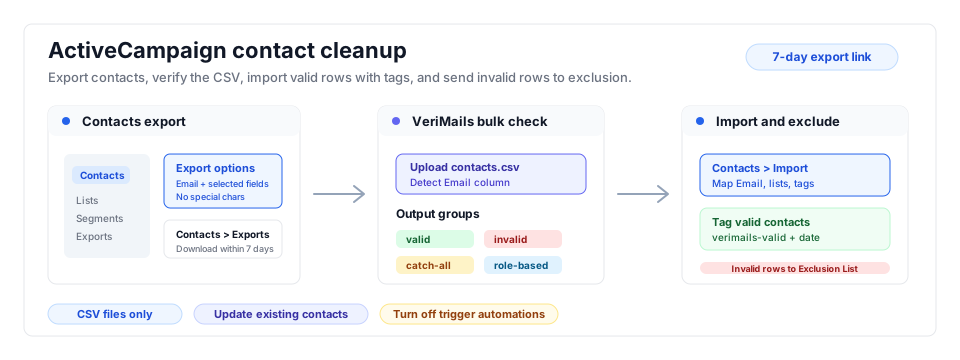
The ActiveCampaign cleanup flow works best when verified contacts receive a durable tag, while invalid and risky results stay out of the next send segment.
- Automation hygiene: Use this flow before contacts enter email marketing automations.
- Bulk verification: Split campaign exports with bulk CSV verification before tagging verified contacts.
- Related platforms: Compare the same workflow in Brevo and GetResponse.
Step-by-Step
Export the contacts and status you need
In ActiveCampaign, export the exact contact set you plan to clean: all contacts from the Contacts overview export menu, or a list or segment export when the campaign scope is narrower. Name the export with letters and numbers only, select Email plus the fields you need for re-import, and run the export. Download it from Contacts then Exports while the Finished link is still valid for seven days.
Prepare the import-safe CSV
Keep Email, First name, Last name, tags, list status, and any custom fields that should survive the cleanup. Remove blank columns you do not intend to update later. Save the raw export separately so you can reconcile the original count against the verification results.
Upload and verify in VeriMails
Sign in to VeriMails, open bulk verification, and upload the ActiveCampaign CSV. VeriMails detects the email column and returns downloadable groups for valid, invalid, catch-all, disposable, and role-based addresses. The expected output is a valid-only file for import and separate risk files for exclusion or review.
Import valid contacts with guardrails
Back in ActiveCampaign, open Contacts then Import, choose Import from File, and upload the valid-only CSV. Map Email and retained fields, assign the contacts to the correct list, and add tags such as verimails-valid and verified-2026-05. If automations are triggered by the list, tag, or updated fields, turn off Trigger Automations in Advanced Options unless you intentionally want those contacts to enter live automations.
Exclude invalid and risky rows
Use the invalid file to add contacts to your exclusion list, unsubscribe them, or delete them when you no longer need the record. Keep catch-all, disposable, and role-based addresses in review tags instead of the main campaign list. Before sending, build the campaign segment from the valid tag and explicitly exclude the review tags.
Confirm the campaign output
Check that the final recipient count equals the verified valid group after exclusions. A clean output has valid contacts tagged, invalid addresses excluded, and risky statuses separated from automations and campaign sends.
Operator Checklist
Use this checklist after verification and before turning the cleaned ActiveCampaign list into live campaign recipients.
| Check | What Good Looks Like | Why It Matters |
|---|---|---|
| Export status | The exported status matches the goal: Active for normal campaigns, Any only for full database hygiene. | Prevents unsubscribed or bounced contacts from being mixed into campaign prep. |
| CSV fields | Email and needed tags or custom fields are retained, while blank fields that could overwrite data are removed. | Helps avoid accidental changes to existing contact records. |
| Import options | The valid file is mapped correctly, tagged, assigned to the right list, and not accidentally triggering automations. | Avoids unexpected flow entries after cleanup. |
| Invalid handling | Invalid addresses are excluded, unsubscribed, or deleted based on your retention policy. | Helps keep likely invalid rows from affecting sends and contact-limit cleanup. |
| Risk segments | Catch-all, disposable, and role-based contacts are tagged for review and excluded from the normal campaign segment. | Lets operators choose carefully instead of dropping uncertain contacts into normal sends. |
Frequently Asked Questions
Related Guides
Try VeriMails Free
100 free credits on signup. No credit card required. Put this guide into practice today.
Start Free