How to Verify Emails in Google Sheets
Spreadsheets are where most email lists live before a campaign, and most of them carry a hidden share of bad addresses. This guide covers four ways to verify emails in Google Sheets and how to choose the one that fits your list.
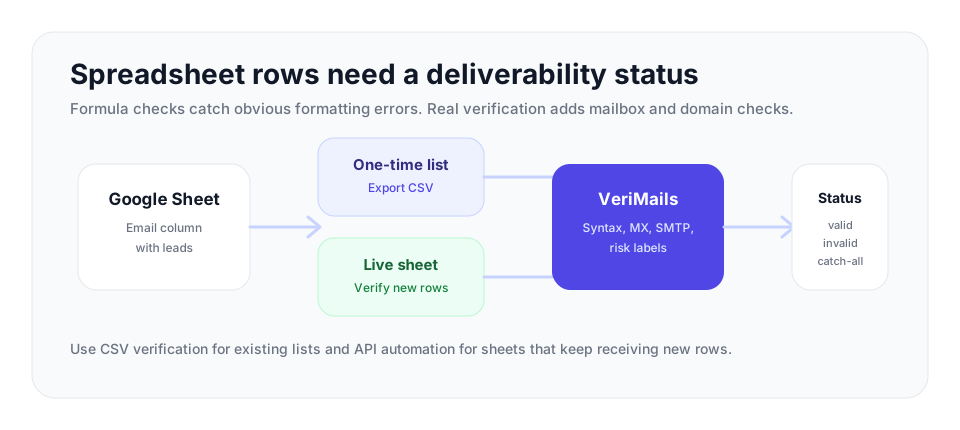
Google Sheets can check whether an email is formatted correctly, but it cannot confirm mailbox deliverability by itself. For existing lists, export the sheet as CSV and run bulk verification. For live sheets that receive new rows, connect the VeriMails API through an automation so each new address gets a status before it enters your CRM or campaign tool.
Why Your Spreadsheet Needs Verification
If you do any kind of outreach, a Google Sheet is probably where your contacts gather first. Leads come in from forms, exports, scraped sources, partners, and manual entry, and they all land in a column before they ever move into a CRM or a campaign tool. That spreadsheet is the staging ground, and it is also where a list quietly accumulates problems.
Every spreadsheet of email addresses contains some that will not work. There are typos from manual entry and from people mistyping their own address on a form. There are stale addresses that were valid when the data was collected but have since gone dead as people changed jobs. There are addresses from third-party sources that were never accurate to begin with. None of this is visible in the sheet. A bad address looks exactly like a good one in a cell.
The problem surfaces only when you send. Invalid addresses cause hard bounces, and hard bounces damage your sender reputation, which pushes even your good mail toward the spam folder. Verifying the sheet before you act on it removes the bad addresses while they are still just rows in a spreadsheet, before they can ever bounce. The question is which method to use, and that depends on what you need.
| Method | Best for | What it can verify |
|---|---|---|
| ISEMAIL or regex | Tiny lists and quick typo checks | Format only. No mailbox or domain confirmation. |
| Sheets add-on | Small to mid-size lists where you want results in the sheet | Depends on the add-on, but should include MX, SMTP, and risk labels. |
| Bulk CSV verification | Existing lists, legacy exports, and campaign prep | Full verification in a background job, then import results back. |
| API automation | Sheets that receive new rows from forms or automations | Real-time status on each new lead as it arrives. |
Method 1: Built-in Format Checks
Google Sheets has no real verification feature, but it can check whether an address is shaped correctly. This is format validation, and it is the only thing the spreadsheet can do on its own.
The simplest tool is the ISEMAIL function. ISEMAIL takes a cell containing text and returns TRUE if the text looks like a correctly formatted email address and FALSE if it does not. Put it in a column next to your addresses and it will flag the ones that are obviously broken: missing the @ symbol, containing spaces, or otherwise malformed. A regular expression formula using REGEXMATCH can do the same job with a pattern you define, which gives you more control over exactly what counts as valid.
These checks are free, instant, and useful as a first filter. They catch genuine typos and garbage entries. But understand the hard limit: format validation only proves an address is shaped like an email address. It cannot tell you whether the domain accepts mail or whether the mailbox exists. The address typo.but.wellformed@example.com passes ISEMAIL and is still not a real inbox. For a list under 100 addresses where you only want to catch obvious mistakes, a format check may be enough. For anything you intend to email, it is not.
Method 2: A Verification Add-on
To verify addresses for real inside Google Sheets, you connect an external verification service through an add-on. Add-ons install from the Google Workspace Marketplace and add a verification option directly to the Sheets menu, so you can verify a column without leaving the spreadsheet.
A verification add-on does what format checks cannot. It connects to the verification service, which performs the real checks on each address: confirming the domain has valid MX records, running an SMTP handshake to test the mailbox, and detecting catch-all, disposable, and role-based addresses. The results write back into your sheet as a status next to each address, with labels such as valid, invalid, catch-all, or unknown, so you can sort and filter your list on the outcome.
An add-on is a good fit when you want everything to happen in the spreadsheet and your list is a manageable size, roughly in the hundreds to low thousands. It is convenient because there is no exporting or importing, and the results land exactly where your data already is. The trade-off is that running a large list through an in-sheet add-on can be slow, since each address is checked in sequence. For bigger lists, a bulk job is the better choice.
Method 3: Bulk CSV Verification
For a large list, or a one-time clean-up of an existing spreadsheet, bulk CSV verification is the most efficient method. The workflow is simple and works with any spreadsheet.
First, in Google Sheets, select the column of email addresses and use File, then Download, to export the sheet as a CSV file. Then upload that CSV to bulk verification. The service processes the whole list as a single background job, running the full layered check on every address: syntax validation, MX and DNS lookup, the live SMTP handshake, and catch-all, disposable, and role-based detection. When the job finishes, you download a results file with a verification status for every address. Finally, import that results file back into Google Sheets, using File then Import, to bring the statuses alongside your original data. From there you can filter to keep only the valid addresses.
Bulk verification is the right choice for large legacy databases, one-time list audits, migrating a list between tools, or any situation where the priority is to clean and assess an entire existing list at once. It handles volume that an in-sheet add-on would struggle with, and it processes the list as a background job rather than one cell at a time. VeriMails bulk CSV verification is built for exactly this kind of list cleaning workflow.
Method 4: API Automation for a Live Sheet
The methods above all verify a list at a moment in time. But many spreadsheets are not static. A sheet connected to a lead form, a sign-up flow, or a Zapier or Make automation gains new rows continuously, and re-running a bulk job every time a row appears is impractical.
For a live sheet, the answer is to verify each address as it arrives, using the VeriMails REST API. You connect the API to your sheet through an automation tool. When a new row is added, the automation passes the new address to the API, receives a verification result, and writes that result back into the sheet next to the address. Every new lead is verified the moment it lands, with no manual step at all.
This is the best approach for teams whose Google Sheets receive new leads automatically and who need continuous, hands-off verification with no delay between capture and validation. It also stops bad addresses at the door: an invalid address gets flagged the instant it enters the sheet, so it never sits unnoticed in your data waiting to be emailed. For developers, the REST API can also be called directly from Google Apps Script for a custom in-sheet function, if you prefer to build the integration yourself rather than use an automation platform.
Choosing the Right Method
The four methods are not competitors so much as tools for different jobs, and the right one depends on your list.
If your list is small and you only need to catch obvious typos, the built-in ISEMAIL formula is enough, though remember it only checks format. If you want real verification and you want it to happen inside the spreadsheet on a list of hundreds to low thousands, install a verification add-on. If you have a large existing list to clean in one pass, or you are auditing a legacy database, export it and use bulk CSV verification, then import the results back. If your sheet is live and continuously gaining new rows, connect the REST API through an automation tool so every address is verified on arrival.
Whichever method fits, the cost is modest. VeriMails verification starts from $0.0019 per email, with 10,000 credits at $19 and packages up to 5 million credits for $1,499, and monthly annual plans from $12.50/month when billed yearly. Every new account gets 100 free credits, no credit card required, and those credits never expire, so you can export a sample of your sheet today, verify it, and see exactly how many bad addresses are hiding in your data before you commit to anything.
Frequently Asked Questions
Related Articles
Start with Clean Data
100 free credits on signup. No credit card required. Put the advice into practice today.
Start Free