How to Clean Your HubSpot Database
HubSpot gets messy when every form, import, sales edit, and enrichment sync lands in the same CRM. Clean the email data first, then your campaigns, lead scoring, and sales follow-up start from records that can actually receive a message.
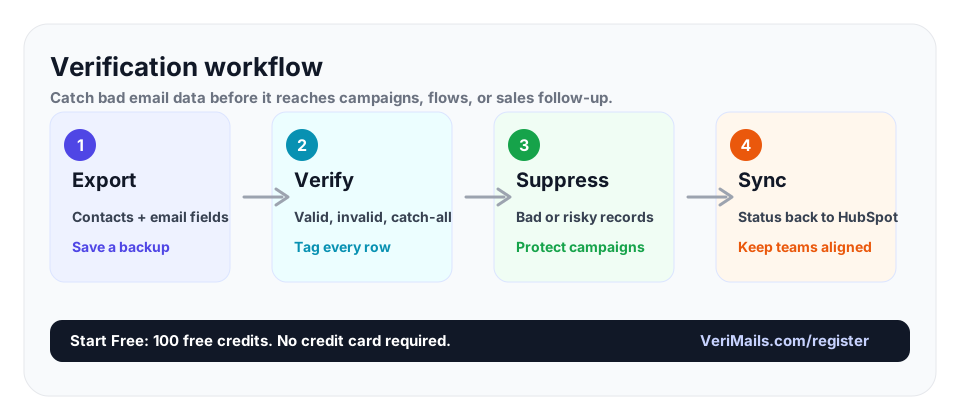
Export your HubSpot contacts, suppress bounces and unsubscribes, verify the remaining email addresses, then write the verification status back to HubSpot before the next send. Use the HubSpot workflow for CRM cleanup, and check pricing before a large database run.
Why HubSpot Email Data Gets Dirty
HubSpot usually starts clean. Then the real work begins. Marketing imports event lists, sales reps add prospects by hand, forms collect typos, enrichment tools overwrite old fields, and old customers change jobs without telling you. None of that looks dramatic in the CRM. A bad email address still sits in a contact record with a company, owner, lifecycle stage, and deal history, so it feels useful until a campaign bounces.
The cost shows up later. A newsletter pulls from a smart list that includes stale records. A sales sequence starts from a property filter that does not check deliverability. A workflow tries to revive an old segment and hits addresses that have been dead for years. HubSpot reports the send, but mailbox providers see the bounces. If you want the full CRM hygiene workflow beyond HubSpot, use the CRM hygiene guide as the operating model.
Cleaning HubSpot does not mean deleting everything old. It means separating contacts you can mail from contacts you should suppress, review, or update. The fastest win is email verification, because the email field powers campaigns, lifecycle automation, sales alerts, and enrichment. When that field is wrong, every downstream decision is weaker.
Start with a Safe Export
Before you change anything in HubSpot, export the contact set you plan to clean. Include email, contact ID, lifecycle stage, owner, list membership, last marketing email engagement, original source, unsubscribe status, and any bounce properties you use. Keep that export untouched. Work from a copy so you can recover if a filter or import mapping goes wrong.
Do not verify every record blindly on the first pass. Remove records HubSpot already tells you not to mail: unsubscribed contacts, hard bounces, spam complaints, contacts without consent where consent is required, and obvious internal test records. This saves credits and keeps your cleanup focused on records that might realistically return to a sendable segment.
If the same address appears in multiple systems, decide which tool owns the final status. Most teams use HubSpot as the source of truth, then write verification status back into a custom property such as "Email verification status" or "Last verified date." That makes the result visible to marketing, sales, and operations instead of leaving it buried in a CSV.
Verify Before You Rebuild Lists
After the first suppression pass, verify the remaining addresses. VeriMails checks syntax, MX and DNS records, live SMTP response where the receiving server allows it, disposable domains, role-based inboxes, and catch-all detection. The output gives you practical labels you can use inside HubSpot: valid, invalid, risky, catch-all, disposable, or unknown.
Valid addresses can stay in active marketing lists. Invalid and disposable addresses should be suppressed from campaigns and workflows. Catch-all addresses need a separate policy. They are not confirmed inboxes, so do not mix them with fully verified contacts for a large launch. Put them in a review segment or a lower-risk send. If you run outbound from HubSpot, compare the cleanup flow with VeriMails vs ZeroBounce before you pay more for the same basic verification job.
Pricing stays simple for this job. VeriMails credits start at $19 for 10,000 verifications, and annual plans start at $12.50/month when billed yearly. That is enough to test a meaningful HubSpot segment before cleaning the whole CRM.
Write Results Back into HubSpot
A cleanup that lives only in a downloaded file gets forgotten. Import the verification status back into HubSpot against the contact ID or email address, then build active lists from those properties. A simple setup works well: keep contacts where status is valid, suppress invalid and disposable, and create a review list for catch-all or risky records.
Use those properties in workflows too. Stop lead nurture when a contact becomes invalid. Prevent sales sequences from enrolling addresses that are not verified. Route suspicious form submissions into review before they reach a rep. If your team uses HubSpot forms, the next step is real-time validation through the email verification API, so bad addresses are caught before they enter the CRM at all.
HubSpot cleanup also improves reporting. When your next campaign performs better, you can show how many addresses were removed, how many were confirmed valid, and how many were held for review. That makes list quality visible instead of treating deliverability as a vague complaint after a send fails.
Quick Decision Table
| HubSpot field | Why it matters | Cleanup action |
|---|---|---|
| The channel every campaign and sales sequence depends on. | Verify it and write the status back to HubSpot. | |
| Contact ID | Keeps imports from updating the wrong record. | Use it as the import key whenever possible. |
| Unsubscribe status | Contacts who opted out should not be mailed again. | Suppress before verification and keep the opt-out intact. |
| Last engagement | Valid but cold contacts still hurt engagement. | Segment for re-engagement after verification. |
| Original source | Old imports and scraped lists carry different risk than forms. | Review high-risk sources before launch. |
- Export a backup before changing HubSpot properties or lists.
- Suppress unsubscribes, complaints, and past hard bounces first.
- Verify the remaining addresses before rebuilding active lists.
- Write status and last verified date back to HubSpot.
- Use verified status in workflows, lead scoring, and sales sequences.
Frequently Asked Questions
Related Articles
Start with Clean Data
100 free credits on signup. No credit card required. Put the advice into practice today.
Start Free