Email Finder for missing professional contact emails
Provide a name, company, or domain. VeriMails returns a found-and-verified professional email when available, helping sales, recruiting, partnerships, and operations teams complete contact records without relying on unverified guesses.
Find emails when your list has the person but not the address
Many lead, candidate, and account lists arrive with names, company names, LinkedIn URLs, or domains, but the email field is blank. Email Finder helps close that gap by returning a verified professional email when VeriMails can provide one.
Person and company inputs
Start with the contact details you already have: first name, last name, company name, or company domain.
Found-and-verified output
When a suitable professional email is available, VeriMails returns a verified address your team can review and use.
Designed for missing fields
Use Email Finder to complete records that are otherwise ready for outreach, routing, or CRM enrichment.
A buyer-facing workflow for completing contact records
Email Finder is for the common moment when you know who you want to reach but do not have a usable professional email address. Instead of pausing the workflow for manual research, you can provide the person's name and company information and let VeriMails return a found-and-verified result when available.
The result is meant to be operational, not speculative. If a verified professional address is returned, your team can place it into the right field in your CRM, sales engagement tool, recruiting database, or partner outreach list.
Email Finder costs 20 credits per successful found and verified email, so the pricing aligns with completed results rather than every blank field you investigate.
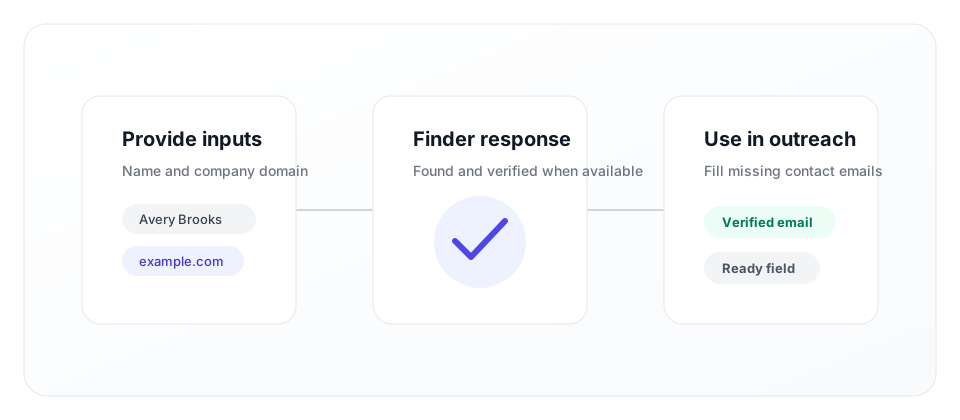
How Email Finder works for your team
The workflow stays simple for the people using it: supply the details you already have, review the returned result, and add verified professional emails only when available.
Provide contact context
Enter a first name, last name, company name, or company domain. Better company context usually makes the request more useful.
Receive a verified address
When VeriMails can return a found-and-verified professional email, the address is ready for review alongside your contact data.
Fill the missing field
Add the email to the appropriate contact record, export it for a campaign, or pass it into your team's next enrichment step.
Best-fit use cases
Email Finder is useful when the account or person is already relevant and the missing email address is the only thing slowing the workflow down. Common examples include sales lists with named decision makers, recruiting spreadsheets with candidate-company context, partnership research, conference follow-up, and CRM enrichment projects.
It is also useful for operations teams that want a repeatable process. Instead of asking reps to search manually, you can standardize when finder requests happen, which fields are required, and which returned emails are approved for outreach.
The strongest use case is targeted contact completion. A small list of well-qualified contacts with missing emails is a better fit than a broad list with weak names, unclear companies, or no reason to contact the person. That keeps the workflow focused on records that matter to the business.
When to verify instead
Email Finder and email verification solve related but different problems. Use Finder when the email field is empty. Use verification when you already have an address and need deliverability context before saving, importing, or sending.
Many teams use both together: Finder helps complete missing professional emails, and verification keeps existing email lists clean through API checks, CSV processing, and ongoing list hygiene.
If your file already contains email addresses, start with verification rather than Finder. If your file contains only names and companies, start with Finder and then keep the returned verification context attached to each contact so later users understand why the address was added.
Build a cleaner contact completion process
Email Finder works best when teams agree where it belongs in the data workflow and how returned results should be used.
For sales and partnerships
Use Email Finder when account research identifies the right person but the list is missing a professional email. This keeps reps focused on qualified accounts and reduces time spent copying addresses from scattered research notes into the CRM.
- Complete named contacts before outbound sequencing.
- Fill blank email fields in account-based prospecting lists.
- Prepare event follow-up lists when company context is available.
A good sales workflow also defines what happens when no found-and-verified email is returned. The contact can stay in a research queue, move to another channel, or remain associated with the account without being added to an email campaign.
For operations and data teams
Use Finder as part of a controlled enrichment workflow. Require enough contact context, record when a found-and-verified email was added, and keep verification results attached to the contact record so downstream users know why the email was included.
For larger files, create separate columns for the original inputs, returned email, result date, and the workflow that requested the lookup. That structure helps teams audit changes later and prevents completed records from being mixed with untouched rows.
Clear ownership matters too. Decide whether sales operations, marketing operations, recruiting operations, or data engineering owns Finder requests, then route exceptions back to that team. A shared process keeps the database cleaner and gives end users more confidence in completed contact records.
Email Finder FAQs
Answers for teams deciding when to use Finder and how the credit model works.
What is VeriMails Email Finder?
How much does Email Finder cost?
When should I use Email Finder instead of email verification?
Can I use Email Finder for bulk prospect lists?
Complete missing email fields with verified results
Start with 100 free credits, no credit card required, test a few contacts, and use Email Finder when your list has the right people but not the email addresses.
Start Free